

Carrying over the vCenter configuration
Phase 2 of a side-by-side migration, in depth. Before the first VM moves to the new vCenter, the configuration that VMs and people depend on has to exist there: roles, tag categories and tags, custom attributes, storage policies, and folders with their permissions. This page takes you through it step by step, with the commands and a check after each step.
Facts on this page come from Broadcom KB articles, public blogs, the toolkits’ own documentation and code, and PowerCLI 13.5.1 (VCF.PowerCLI 9.1.1), checked on 2026-11-13. Each is linked where it’s used.
Contents
- Before you start
- The order, and why
- Step 1: roles
- Step 2: tag categories and tags
- Step 3: custom attributes
- Step 4: storage policies
- Step 5: folders and permissions
- Step 6: resource pools, DRS groups and rules
- Step 7: templates and content libraries
- Phase 2 is done when
- Sources
Before you start
A workstation that can reach both vCenters on 443, with:
- PowerShell 7.4 or later. Not Windows PowerShell 5.1, even though
that’s what Windows ships with. Broadcom:
“In VCF PowerCLI 9.x a requirement of PowerShell 7.0.13 + was
introduced”, and on 5.1 the tag cmdlets fail with “Could not load file
or assembly ‘Newtonsoft. Json, Version=10.0.0.0’”
(KB 409981).
The PowerCLI installation guide
adds: “PowerShell 5.1 is being deprecated. […] PowerShell 7.4 or later
is officially supported and is our minimum recomended version for use.”
Start the toolkits from
pwsh, not frompowershell.exe. Microsoft ended support for 7.4 (and 7.5) on 10-Nov-2026, so install 7.6 LTS (supported until 14-Nov-2028, per Microsoft’s PowerShell support lifecycle). Installing PowerShell 7 and VCF.PowerCLI on the workstation, with or without internet access, step by step: planning guide, Jump Host PowerShell. - VCF.PowerCLI 9.0 or later:
Install-Module -Name VCF.PowerCLI -Scope CurrentUser. - The toolkits: VIRoleManager, VITagManager, StoragePolicyManager and VIFolderManager. Download each as a zip or clone it; how, and what to do on a jump host without internet: docs/29, Getting them.
Accounts. An administrator on both vCenters. The toolkits ask for
credentials once and save them as <vCenter>.cred next to the script. On
Windows the password is DPAPI-encrypted for the current user; on Linux
and macOS it is not encrypted (VIFolderManager README). Delete the
.cred files when the migration is done.
The target’s directory. The users and groups that hold permissions on the source must resolve on the target before step 5. Connect the target to the same directory first (question 5 in docs/29).
One working folder for the whole migration, kept outside both vCenters. Every export lands there. It’s your reference for the checks, and your record of what the source looked like.
Who made the toolkits. VIRoleManager, VITagManager, StoragePolicyManager and VIFolderManager are written by Paul van Dieen, the author of this guide (hollebollevsan.nl).
Use at your own risk. These are community tools, not Broadcom products, and they come without support or warranty. Before you use one on a real environment, read its README, test it in a lab or against a non-production vCenter first, check every export file before you import it, use the dry run where the toolkit has one, and check the result yourself afterwards. You are responsible for what they change in your environment. The same goes for the PowerCLI examples on this page. Found a problem? Open an issue in the toolkit’s GitHub repository.
What has been tested. The toolkits have been tested with vSphere 9 vCenters on both sides, and from a vCenter 8.0 U3 source into a vCenter 9.1.1 target (lab, 2026-11-16, with a test set per toolkit: roles, tag and vSAN policies, folders with permissions, tag categories and custom attributes). The vCenter 8 test had no hosts, so no VMs were moved into folders there. VITagManager’s VM part (assignments and values per wave, VMs with the same name) was tested from a VCF 9.0.2 source into 9.1.1 (lab, 2026-11-16). A 7.x source hasn’t been tested. Open each export file and check that it holds what you expect before you import it. Where a toolkit has a dry run, use it first.
Things all four toolkits do the same way:
- Running an import twice is safe. Roles, storage policies, tag categories, tags and attributes that already exist are skipped; folders that exist are reused. So after a partial run or a fix, just run it again.
- Self-signed certificates (a lab, or a vCenter without a CA-signed
certificate yet): add
-SkipCertificateValidation. In production, fix the certificate trust instead. - Wrong or changed password: add
-ResetCredentialsto be asked again. - Pickers accept a number, a comma-separated list, a range like
2-6, orall, and filter by name:*text*or/textnarrows the list,resetclears it.cancel(orq) stops. - The folder is asked for after the mode when you don’t pass it: Enter keeps the default, B opens a folder browser, or type a path. The commands below pass it, so they don’t ask.
- Every run writes a log to
Logs\next to the script, and a failure is a redFAILEDline that the summary lists again. The exit code is 0 without failures, 1 with failures, 2 when an unattended run hit a question. This holds from VIRoleManager 1.4.0, StoragePolicyManager 1.2.0, VITagManager 0.2.0 (1.0.0 for the baseline export of assignments) and VIFolderManager 1.3.0. - Long steps show a progress bar with “n of N”, the percentage and the time left, for example while an export reads the permissions of hundreds of folders (VIFolderManager 1.4.0, VITagManager 1.1.0, VIRoleManager 1.5.0, StoragePolicyManager 1.3.0). Some consoles, an RDP session for example, show no progress bar at all, so the long steps also write log lines with counts (VITagManager 1.2.1, VIFolderManager 1.5.1), and VDSPortGroupManager 1.7.1 writes a text progress line every 5% on export and import.
- An HTML report of the export: add
-Reportto an export of VIFolderManager (1.6.0) or VITagManager (1.3.0) and an HTML file lands next to the JSON. It’s the VI Export Viewer with the export in it: it opens offline in any browser, shows what the export holds, compares a source and a target export (drop the second file on it), and prints to PDF for the migration file. The viewer also opens exports made without-Report.
The order, and why
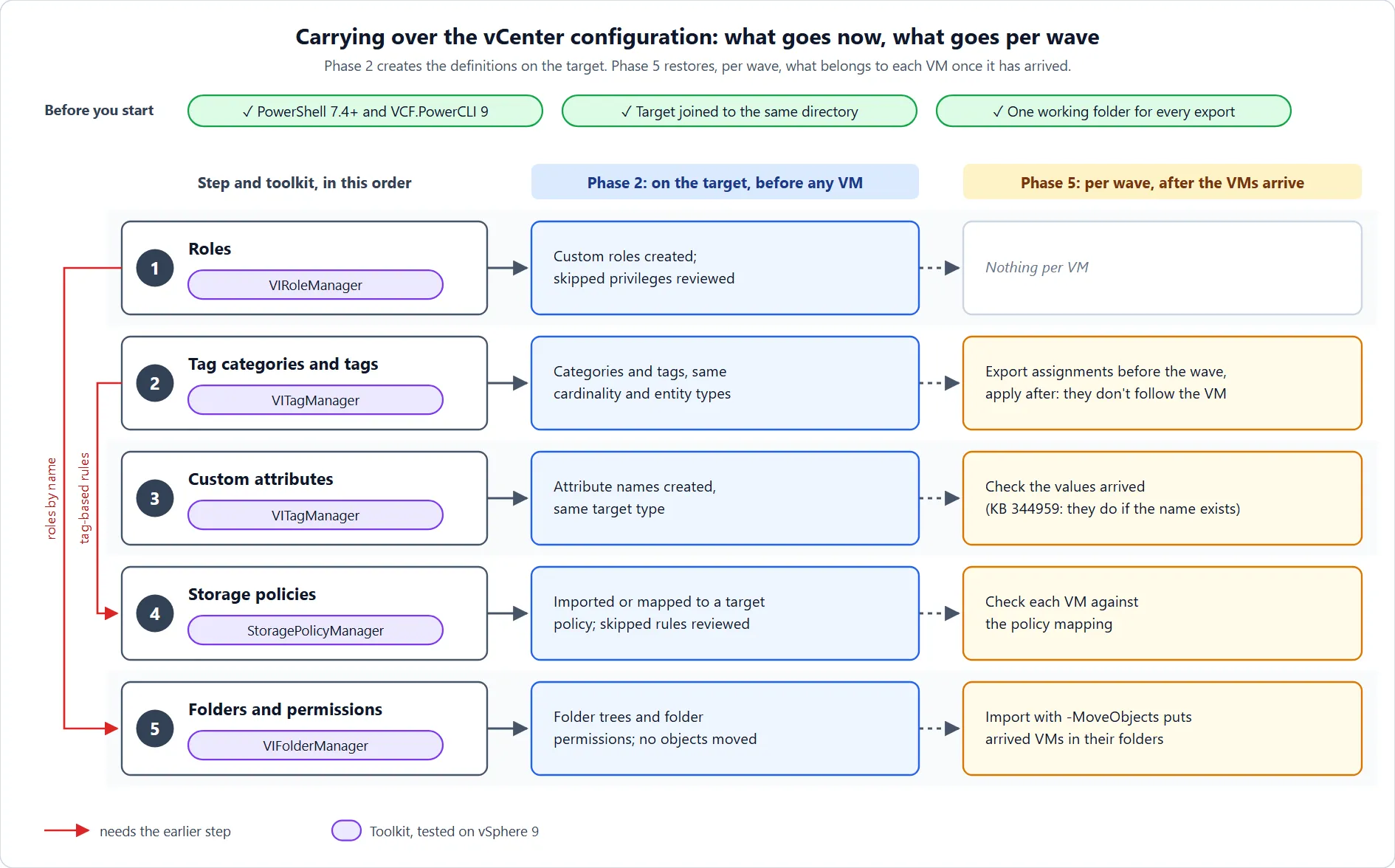
| Step | What | Tool | Needs first |
|---|---|---|---|
| 1 | Roles | VIRoleManager | – |
| 2 | Tag categories and tags | VITagManager | – |
| 3 | Custom attributes | VITagManager, same run | – |
| 4 | Storage policies | StoragePolicyManager | Step 2, for tag-based rules |
| 5 | Folders and permissions | VIFolderManager, PowerCLI | Step 1 and the target’s directory |
Why before the VMs: per KB 344959, “vCenter definitions that do not exist in the destination vCenter (regardless of SSO), such as: vSphere Tags, Custom Attributes, Permissions” are not migrated with a VM, and VM storage policies “may or may not persist as the policy may or may not exist on the target VC”.
Tags are a special case: even when they exist on the target, the assignment of a tag to a VM doesn’t come along. See step 2.
Step 1: roles
Toolkit: VIRoleManager.
Export from the source. VIRoleManager lists the custom roles (system
roles are left out). A VCF vCenter has dozens of its own service roles in
that list, so pick yours by number or filter on their names, or pass
them with -RoleName (names or wildcards):
.\Invoke-VIRoleManager.ps1 -vCenterServer <source-vcenter> -Mode Export -FilePath <working-folder>\rolesEach role becomes one JSON file with its name, description and privilege IDs.
Import into the target. Point -FilePath at the folder; the script
lists the JSON files and you pick them:
.\Invoke-VIRoleManager.ps1 -vCenterServer <target-vcenter> -Mode Import -FilePath <working-folder>\rolesWhat the import does:
- A role whose name already exists on the target is skipped with a
warning. To import it anyway under another name, import that one file
with
-NewRoleName. - Privileges that don’t exist on the target are listed and skipped;
the role is created with the rest. Read that list: a privilege that
was renamed or removed in vSphere 9 may leave the role short of what it
needs. From a vCenter 8.0 U3 source, four privileges don’t exist on
9.1.1:
vSphereClient.UtilizeVerificationCode,IntercomNamespace.Read,IntercomNamespace.WriteandObservability.Admin; the import reports “4 privilege(s) not found in target vCenter and will be skipped” (lab-verified, 8.0.3 build 25600417 to 9.1.1 build 25784172, 2026-11-16). - The import copies only the privileges the role had on the source. It doesn’t add privileges that newer vSphere versions introduced. Check each imported role against what its holders must be able to do on 9.x.
On a vCenter 9.1.1 target, a new custom role also gets a permission
on the vCenter root for a group VSPHERE.LOCAL\vcf_reserved_<n>. Leave
it alone. It belongs to the VCF roles of VCF single sign-on: “To use VCF
roles, the vCenter instance creates local groups and new global
permissions to support the intended VCF role. Do not modify the new
global permissions that have been added and which are for principals
whose names start with vcf_reserved_. Modifying global permissions could
break your system as it causes VCF authorization issues”
(Managing VCF Roles).
The vSphere Client’s Global Permissions page doesn’t show these groups;
“You can retrieve all accounts for auditing or any other purpose by using
CLI/API” (vCenter 9.1.1 release notes). That every custom role gets one
is lab-verified (VCF 9.1.1, 2026-11-12 and 2026-11-16; not on 9.0.2); the
page doesn’t say why.
Undo. To remove a role you imported by mistake:
Remove-VIRole -Role (Get-VIRole -Name '<role>'). On a 9.1.1 target this
reports the role as in use because of the vcf_reserved permission above
(lab-verified). Deleting the role together with that permission does work:
the vSphere Client’s Delete role with the option to remove its
permissions, or RemoveAuthorizationRole(<roleId>, $false) through the
API, removes the role and its own vcf_reserved_<roleId> permission.
Lab-verified on VCF 9.1.1 (2026-11-19): one role by hand and 200 test
roles by script; neither the roles nor the permissions came back (checked
after 5 minutes), and no vcf_reserved permission was left pointing at a
deleted role. Broadcom’s “Do not modify” above is about the permissions
of roles that stay; deleting a custom role isn’t covered there. Not
checked: whether VCF Operations notices. The local group
vcf_reserved_<roleId> was gone as well (vSphere Client, Single Sign On,
Users and Groups). Only delete a role you created yourself,
and only when no other permission uses it.
Check. Run this on both vCenters and compare the two files:
Get-VIRole | Where-Object { -not $_.IsSystem } | Sort-Object Name | ForEach-Object {
  [PSCustomObject]@{ Role = $_.Name; Privileges = ($_.ExtensionData.Privilege | Sort-Object) -join ';' }
} | Export-Csv -Path <working-folder>\roles-<vcenter>.csv -NoTypeInformation
Every source role is on the target. Where the privilege lists differ, the difference is the list the import reported, and you’ve decided per privilege whether that’s acceptable.
Step 2: tag categories and tags
Toolkit: VITagManager (lab-tested; run the dry run first anyway). It handles step 3 as well. Without it: PowerCLI, at the end of this step.
There are two parts to tags, and they move at different times:
- Categories and tags (the definitions) go across now.
- Tag assignments (which object has which tag) are re-applied after each migration wave, in phase 5.
Why the split: Jim Millard found that “when a VM is migrated from one
vCenter to another using cross-vCenter vMotion, the tags on the VM do not
get migrated with it even if the corresponding tags & categories are
present in the target vCenter”, and that the assignments must be
captured before the VM moves, “or that information is lost forever”
(Migrating tags after cross-vCenter vMotion,
Jim Millard, 2026-05). VITagManager follows the same split: -Content Definitions now, -Content Assignments per wave.
Export from the source. One JSON file with the tag categories (with their cardinality and entity types), the tags, and the custom attribute names for step 3:
.\Invoke-VITagManager.ps1 -vCenterServer <source-vcenter> -Mode Export -Content Definitions -BackupDirectory <working-folder>\tagsAdd -Category (names or wildcards, for example -Category 'Backup*','Tier')
to take only some categories. Categories that belong to products you’re
leaving behind can stay where they are. Custom attributes that vCenter and
other products create and manage themselves (names starting with
com.vmware., com.vrlcm., AutoDeploy. or VMSP-, and attributes on
non-inventory objects such as scheduled tasks) are left out; the log lists
them (VITagManager README).
Import into the target, first as a dry run:
.\Invoke-VITagManager.ps1 -vCenterServer <target-vcenter> -Mode Import -Content Definitions -BackupDirectory <working-folder>\tags -DryRunYou pick the export file (the newest is marked). Read the log, then run
the same command without -DryRun. What the import does:
- Categories, tags and attributes that are missing are created with the source’s settings. One that already exists is left alone; if its cardinality, entity types or target type differ, the log says so.
- It never removes anything.
- Pass the same
-Categoryas on the export, or use it here to import only part of a full export.
The log file goes to Logs\ next to the script unless you pass
-LogDirectory. Keep it with the exports.
Export the assignments now, as a baseline. You’ll export them again right before each wave, but take this one now so you have the full picture before anything moves:
.\Invoke-VITagManager.ps1 -vCenterServer <source-vcenter> -Mode Export -Content Assignments -BackupDirectory <working-folder>\tagsThis holds the tags and custom attribute values of every VM, host, cluster, datastore, folder, network and the other inventory objects. Use VITagManager 1.0.0 or later for it: earlier versions read all tag assignments of the vCenter in one call, and one tag on an object PowerCLI can’t load (for example a first-class disk) stopped the whole export with “The object ‘vim.vslm.host.VStorageObjectManager:vstorageObjectManager’ has already been deleted or has not been completely created”; nothing was written (field report on vCenter 8.0.3, VITagManager #4). 1.0.0 reads the tags per object and lists an object it can’t read as a failure, without losing the rest. 1.2.0 reads them through vCenter’s tagging API in a few calls: on a field export of 2820 objects the per-object way took about 20 minutes. Tags on other kinds of objects, such as first-class disks or content library items, are not carried over.
Running it again creates only what’s still missing, so it’s safe to
repeat: a second import reports everything as already present. Undo:
Remove-Tag and Remove-TagCategory on the target.
Check. Run the Definitions import once more with -DryRun: nothing
to create, and no category with different settings. From a vCenter 8.0.3
source into 9.1.1, the categories arrived with the same cardinality and
entity types, including one without restrictions (lab-verified,
2026-11-16).
Without the toolkit (PowerCLI). Connected to both vCenters, this creates every source category and tag that the target doesn’t have yet, the same approach as Jim Millard’s Copy-vcTags.ps1. Try it against a lab or a test vCenter first.
$src = Connect-VIServer <source-vcenter>
$dst = Connect-VIServer <target-vcenter>

foreach ($cat in Get-TagCategory -Server $src) {
  if (-not (Get-TagCategory -Server $dst -Name $cat.Name -ErrorAction SilentlyContinue)) {
    New-TagCategory -Server $dst -Name $cat.Name -Description $cat.Description `
      -Cardinality $cat.Cardinality -EntityType $cat.EntityType
  }
}
foreach ($tag in Get-Tag -Server $src) {
  $dstCat = Get-TagCategory -Server $dst -Name $tag.Category.Name
  if (-not (Get-Tag -Server $dst -Category $dstCat -Name $tag.Name -ErrorAction SilentlyContinue)) {
    New-Tag -Server $dst -Name $tag.Name -Category $dstCat -Description $tag.Description
  }
}
-Cardinality is Single (one tag of this category per object) or
Multiple; -EntityType limits which object types the category can be
assigned to. Both are copied from the source, so a category behaves the
same on the target. A baseline of the assignments with PowerCLI:
Get-TagAssignment -Server $src | Select-Object `
  @{N='Entity';E={$_.Entity.Name}}, @{N='EntityId';E={$_.Entity.Id}}, `
  @{N='Category';E={$_.Tag.Category.Name}}, @{N='Tag';E={$_.Tag.Name}} |
  Export-Csv -Path <working-folder>\tag-assignments-baseline.csv -NoTypeInformation
Step 3: custom attributes
Toolkit: VITagManager, the same run as step 2. Without it: PowerCLI, below.
Custom attributes are the extra annotation fields on VMs and hosts. KB 344959 lists them among the definitions that aren’t migrated when they don’t exist on the target, and among the metadata that is migrated when they do. So create the attribute names on the target first.
The Definitions export and import of step 2 already include the
attribute names, each with its target type; a global attribute (no
target type) is created as a global one (lab-verified on 9.1.1,
2026-11-16). The Assignments export holds the values, so a wave import
in phase 5 also fills in values that didn’t arrive. A value that is
already set to something else on the target is reported and kept, unless
you add -OverwriteValues.
Without the toolkit (PowerCLI). Compare first; most environments have only a few:
Get-CustomAttribute -Server $src | Select-Object Name, TargetType
Get-CustomAttribute -Server $dst | Select-Object Name, TargetType
Create each missing one on the target with the same name and target type, for example:
New-CustomAttribute -Server $dst -Name '<attribute-name>' -TargetType VirtualMachineAn attribute without a target type on the source is a global one; create
it with -TargetType $null (“If the value is $null the custom attribute
is global and applies to all target types”, PowerCLI help).
Check. The attribute names and target types match on both vCenters
(Get-CustomAttribute). After the test VM in phase 4, compare its
values with Get-Annotation on both sides.
Step 4: storage policies
Toolkit: StoragePolicyManager.
Tag-based policy rules refer to tags by category and name, so step 2 must be done first.
Export from the source. Pick the policies by number, or all:
.\Invoke-StoragePolicyManager.ps1 -vCenterServer <source-vcenter> -Mode Export -FilePath <working-folder>\policiesImport into the target:
.\Invoke-StoragePolicyManager.ps1 -vCenterServer <target-vcenter> -Mode Import -FilePath <working-folder>\policiesWhat the import does:
- A policy whose name already exists on the target is skipped with a
warning. Expect this for the default policies that every vCenter has.
Use
-NewPolicyName(one file at a time) to import under another name. - Capability-based rules (vSAN and others) are matched by capability ID; tag-based rules by category and tag name. A capability or tag that the target doesn’t have is reported and skipped, and so is a rule type the script doesn’t know.
Read every skipped item. A rule that was skipped makes the policy on the target weaker than on the source, and a VM placed on it gets different storage behaviour without any error.
When every rule of a policy is skipped, for example a tag-based policy whose tag isn’t on the target yet, the import reports the missing tag and then fails with “The storage policy cannot have both CommonRule and AnyOfRuleSets null or empty” (lab-verified 2026-11-16, StoragePolicyManager #6). That’s why step 2 comes first: create the tags, then import the policies.
Undo: Remove-SpbmStoragePolicy -StoragePolicy (Get-SpbmStoragePolicy -Name '<policy>'), as long as no VM uses the policy yet. Then fix the
cause and import that file again.
Check. Every source policy that VMs use exists on the target, either imported or deliberately replaced by a target policy. Write down that mapping (source policy → target policy): in phase 5 you check each migrated VM against it.
Step 5: folders and permissions
Toolkit: VIFolderManager (lab-tested; run the dry run first anyway). Other permissions: PowerCLI.
Folders, without moving anything yet. Export all four folder types from the source:
.\Invoke-VIFolderManager.ps1 -vCenterServer <source-vcenter> -Mode Export -FolderType VM,Host,Datastore,Network -BackupDirectory <working-folder>\foldersYou pick the datacenters (or pass -Datacenter); each gets one JSON
file. Without -BackupDirectory the script asks for the folder after the
mode, and B opens a folder browser (1.3.0). Folders that vCenter,
the Supervisor or NSX manage themselves (vCLS, Namespaces,
NSX Managed Folders, Virtual Private Clouds) are skipped.
Import into the target, first as a dry run. No objects are moved in this phase: the VMs aren’t there yet.
.\Invoke-VIFolderManager.ps1 -vCenterServer <target-vcenter> -Mode Import -BackupDirectory <working-folder>\folders -MoveObjects:$false -ApplyPermissions -DryRunRead the log, then run the same command without -DryRun. From 1.3.0
anything that fails (a folder, a move, a permission) is a red FAILED
line, the summary lists it, and the run ends with exit code 1; a role or
folder that is missing only gives a yellow skip.
Placement list for HCX (1.5.0 and later). Add -Csv to this import
and VIFolderManager writes <export>_target-<datacenter>.csv next to the
export: per VM its folder path and the ID of that folder on the target
vCenter. That’s the destination folder per VM in the HCX Mobility Group
(docs/33). The export holds the vCenter IDs of
every folder and object as well; the import still matches by name.
What the import does:
- Folders with the same path are reused, missing ones are created. Nothing is renamed or removed.
- Permissions on folders are matched to roles by name (step 1) and to principals through the target’s directory. A principal that doesn’t resolve is reported.
- Permissions on a datacenter’s hidden root folders (
vm,host,datastore,network) are not re-applied, because vCenter refuses them with “Operation not allowed on sub-entity”; they’re listed in the log (VIFolderManager README; lab-verified on VCF 9.1.1).
The log file goes to Logs\ next to the script unless you pass
-LogDirectory. Keep it with the exports.
Undo: VIFolderManager deliberately has no delete mode, “destroying a vSphere folder also destroys everything inside it, VMs included” (README). Remove a wrong folder by hand in the vSphere Client while it’s still empty.
Permissions on everything else. VIFolderManager handles permissions
on folders only. Permissions set on the vCenter root, datacenters,
clusters, hosts, datastores, networks or individual VMs need their own
export. The command for that, and for a full role export, is in the
permissions backup of docs/06.
Recreate them on the target with New-VIPermission, for those objects
that exist on the target. Global permissions don’t come from
Get-VIPermission; docs/06 explains how to capture them.
Check. The folder trees on both vCenters match (a new export of the target, compared with the source export), the import log has no unresolved principals, and every non-folder permission from the export either exists on the target or waits for an object that arrives in a later wave.
Step 6: resource pools, DRS groups and rules
Resource pools, VM groups, host groups and VM/Host rules belong to the cluster, not to the VM. KB 344959 lists what does travel with the VM: “Per-VM DRS settings are migrated during Cross vCenter vMotion, including DRS enablement, DRS mode (manual, partial, full automated), VM affinity/anti-affinity rules. the same applies to HA. The per-VM HA overrides are carried over during migration” (KB 344959). Resource pools, DRS groups and VM/Host rules are not in that list: recreate them on the target cluster before the wave that needs them, and pick the target resource pool when you migrate.
Export them from the source, per cluster:
$cl = '<source-cluster>'
Get-Cluster $cl | Get-ResourcePool |
  Select-Object Name, @{N='Parent';E={$_.Parent.Name}}, CpuSharesLevel, NumCpuShares, CpuReservationMHz,
    CpuLimitMHz, CpuExpandableReservation, MemSharesLevel, NumMemShares, MemReservationGB, MemLimitGB,
    MemExpandableReservation | Export-Csv <working-folder>\cluster\$cl-pools.csv -NoTypeInformation
Get-DrsClusterGroup -Cluster $cl |
  Select-Object Name, GroupType, @{N='Members';E={$_.Member.Name -join ';'}} |
  Export-Csv <working-folder>\cluster\$cl-groups.csv -NoTypeInformation
Get-DrsVMHostRule -Cluster $cl |
  Select-Object Name, Enabled, Type, @{N='VMGroup';E={$_.VMGroup.Name}}, @{N='HostGroup';E={$_.VMHostGroup.Name}} |
  Export-Csv <working-folder>\cluster\$cl-vmhost-rules.csv -NoTypeInformation
Get-DrsRule -Cluster $cl |
  Select-Object Name, Enabled, Type, @{N='VMs';E={(Get-VM -Id $_.VMIds).Name -join ';'}} |
  Export-Csv <working-folder>\cluster\$cl-vm-rules.csv -NoTypeInformation
These lines were run read-only against a VCF 9.1.1 lab vCenter with
VCF.PowerCLI on 2026-11-16 (Lab-verified). Leave out what the platform
created for itself: on that lab cluster the export also held the
Supervisor’s Namespaces pool with its svc-* children, a resource pool
for the NSX Edge cluster, and the Edge anti-affinity rule. The target
platform makes its own.
Recreate them on the target cluster. Host groups name hosts, so map them to the target hosts; VM groups can only hold VMs that are on the target, so add each VM to its group after its wave. Two things to know before a wave:
- VM groups with a start dependency. For a VM in a VM group used by a start or boot dependency rule, migrating it leaves “a stale entry in the new vCenter Server Database”. Broadcom’s procedure: “Remove the VM from it’s VM_Group under Source vCenter”, migrate, then “Add VM into the new VM_Group with it’s subsequent dependencies” (KB 301490).
- The account that migrates. Moving a VM with affinity or anti-affinity rules, DRS or HA overrides needs “Host > Inventory > Modify cluster” on the destination; without it the migration fails with “Permission to perform this operation was denied” (KB 429035, vCenter 8.x). Give the role from step 1 that privilege, or remove the rules before the move and add them after.
Check. Every resource pool, host group and VM/Host rule from the export exists on the target cluster or is written down as left out, and the migration account has Modify cluster on the target.
Step 7: templates and content libraries
A VM migration moves VMs; templates and content library items stay behind.
VM templates in the inventory. HCX doesn’t take them: “HCX does not support direct migration of VM templates. Templates must be in a powered-on or powered-off VM state”. The workaround is to convert the template to a VM, migrate that, and “Convert to Template” on the target (KB 416264). The same works without HCX: a converted template is a powered-off VM, so it goes with the cross vCenter migration wizard like any other. Put the templates in their own wave, early, so the target can build new VMs.
Content libraries. A library on the target can subscribe to a
published library on the source, but VM templates (.vmtx) in a library
only synchronize between linked vCenters: “To synchronize VM Templates
(.VMTX ) between Content Libraries across different vCenter Servers, the
Publisher and Subscriber vCenter Servers must participate in Enhanced
Linked Mode (ELM) or vCenter Group”
(KB 414494,
vCenter 8.0.x to 9.1.x). A source vCenter that stays separate from the
target can’t do that, so:
- OVF templates and other files: subscribe a target library to the source library, synchronize, and check the item count.
- VM templates in a library: move them as VMs (deploy one on the source, migrate it, and add it to a target library as a template).
- Before the source is retired: a subscription points at the source vCenter. Make sure everything you keep is stored in a target library that doesn’t depend on it.
Check. Every template that’s still in use is on the target, as a template or in a target library, and no target library depends on the source any more by the time the source is retired.
Phase 2 is done when
- Every custom role is on the target, and skipped privileges have been reviewed.
- Every tag category and tag is on the target, with the same cardinality and entity types.
- The tag assignment baseline is exported.
- Every custom attribute is on the target.
- Every storage policy in use is on the target or mapped to a target policy, and skipped rules have been reviewed.
- The folder trees match, and folder permissions are in place.
- Other permissions are recreated or listed for later waves.
- Resource pools, host groups and VM/Host rules are on the target cluster, and the migration account has Modify cluster there.
- Templates and content library items in use have a route to the target (step 7).
- All exports are in the working folder.
Then go on with phase 3: Carrying over the networks and the firewall.
Sources
Checked on 2026-11-13.
- KB 344959: Cross vCenter Migration and Clone requirements in VMware vSphere 6.x and later
- KB 409981: VCF PowerCLI 9.x fails to run commands with an error “The system cannot find the file specified”
- Broadcom, PowerCLI installation guide
- Jim Millard, 2026-05: Migrating tags after cross-vCenter vMotion
- Toolkit READMEs and code:
VIRoleManager 1.3.0,
StoragePolicyManager 1.1.0,
VIFolderManager 1.2.0
(read 2026-11-16, with their
tests/scripts and lab results; the folder prompt, failure summary and unattended runs from VIFolderManager 1.3.0, VIRoleManager 1.4.0, StoragePolicyManager 1.2.0 and VITagManager 0.2.0 and 1.0.0, and the placement list of VIFolderManager 1.5.0, read 2026-11-18) - Read on 2026-11-16:
Managing VCF Roles
(VCF 9.1,
vcf_reserved_), vCenter 9.1.1.0 release notes (VCF reserved groups hidden from Global Permissions) - PowerCLI cmdlet syntax and help (
New-TagCategory,New-Tag,Get-TagAssignment,New-CustomAttribute,Get-VIPermission,New-VIPermission,Remove-VIRole,Remove-SpbmStoragePolicy,Remove-Tag,Remove-TagCategory): VMware.VimAutomation.Core and .Storage 13.5.1 (VCF.PowerCLI 9.1.1) - Steps 6 and 7, read on 2026-11-16:
KB 301490
(VM groups with a start dependency),
KB 429035
(Modify cluster for VMs with rules or overrides),
KB 416264
(templates with HCX),
KB 414494
(VM templates in subscribed libraries need linked vCenters); the step 6
export lines (
Get-ResourcePool,Get-DrsClusterGroup,Get-DrsVMHostRule,Get-DrsRule) run read-only against a VCF 9.1.1 lab vCenter with VCF.PowerCLI on 2026-11-16