

Proving the path
Phase 4 of a side-by-side migration: the gate between preparing and migrating. Before the first production VM moves, every network flow the migration needs is tested from both ends, and one test VM goes to the target and back with exactly the tools and settings the waves will use. Nothing in phase 5 should be the first time something is tried.
This page covers both routes: with HCX and without HCX. It assumes phases 1 to 3 are done: the target is built (and HCX on both sides, if you use it), and the configuration (docs/30) and the networks and firewall (docs/31) exist on the target.
Facts on this page come from the vSphere 9.1 TechDocs, the VCF Operations HCX user guide for VCF 9.1 and Broadcom KB articles, read word for word on 2026-11-13. Each is linked where it’s used. Several KBs were written for vSphere 7 or 8, which is what most source environments still run.
Contents
- Phase 4, at a glance
- What “proven” means
- Choose the test VMs
- Network tests without HCX
- Network tests with HCX
- The test VM there and back, without HCX
- The test VM there and back, with HCX
- The checks after each move
- Measure for the waves
- When a test fails
- The evidence sheet
- Phase 4 is done when
- Sources
Phase 4, at a glance
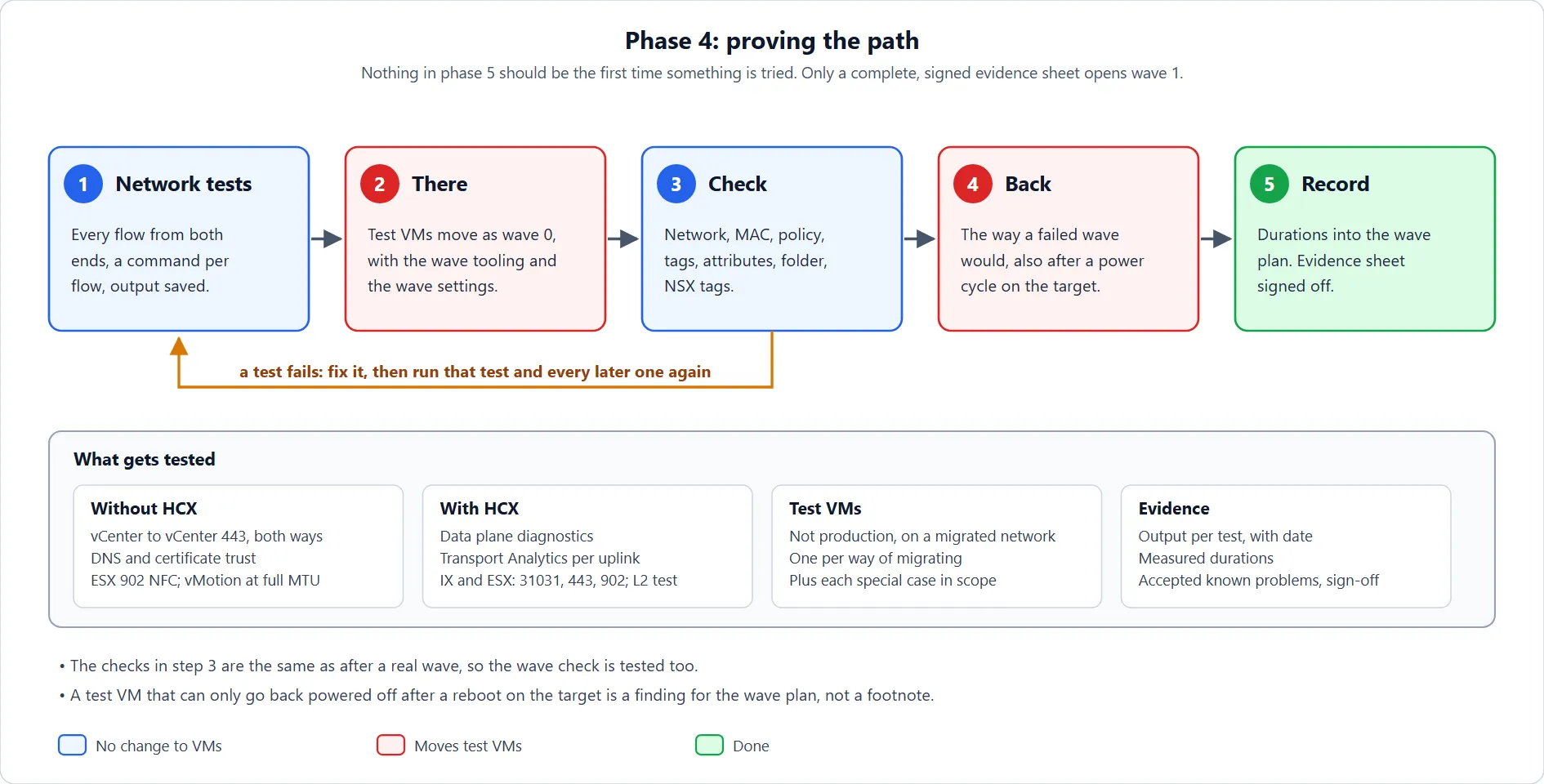
What “proven” means
The path is proven when all five are true:
- Every flow is tested from both ends, with a command whose output you saved, not only with a firewall change marked done.
- One test VM per way of migrating went to the target with the tools and settings of the real waves: the same wave list, script or Mobility Group options.
- After the move, every item the wave check will look at was right: network, storage policy, tags, custom attributes, folder, NSX tags.
- The test VM came back the way a VM would on a failed wave.
- The durations are measured and the results are recorded on the evidence sheet, and the migration lead signed it.
Choose the test VMs
Pick test VMs that look like the VMs in the waves, not an empty VM that nothing depends on:
- Not production. A test VM may lose its network or come back without its tags; that is what this phase is for.
- On a network that will be migrated, so the test proves the network path the waves use: an extended network (with HCX) or a VLAN that exists on both sides (without HCX).
- With everything the waves carry: a folder, vSphere tags, custom attribute values, a storage policy, and an NSX tag if the target uses the distributed firewall. Otherwise the checks after the move have nothing to check.
- One per way of migrating you’ll use. Without HCX that is usually one; with HCX, one per migration type in the wave list (Bulk, RAV, HCX vMotion, Cold).
- The special cases you have in scope, each with its own test VM: an encrypted VM, a VM with an RDM, a VM on the oldest hardware version, a VM on the oldest source hosts (CPU generation). Each one that fails here is a VM that would have failed in a wave.
Write the test VMs down as wave 0 in the wave list.
Network tests without HCX
Advanced Cross vCenter vMotion needs “Port 8000 on the ESX host for vMotion”, “Port 902 on the ESX host for NFC” and “Port 443 between the two vCenter instances” (vSphere 9.1, Import or Clone). Under those three sit DNS, certificates, time and the vMotion and provisioning networks of the hosts. Test each:
| Flow | Test | Source |
|---|---|---|
| vCenter to vCenter, 443, both ways | From each vCenter’s shell: curl -vkI https://<other-vcenter>:443. With dual stack also curl -6 -vkI ...: “When IPv4/IPv6 dual-stack is enabled on both vCenters, IPv6 traffic is prioritized” | KB 414748 |
| DNS | Each vCenter resolves the other’s FQDN; “both the forward (A) and reverse (PTR) records” exist on the DNS server that vCenter uses | KB 458498 |
| Certificate trust | The source vCenter trusts the root CA that issued the target vCenter’s machine certificate. The KB’s check: export the target’s machine certificate and roots, and run openssl verify -CAfile <root> machine-ssl-cert.crt on the source | KB 433237 |
| NFC, ESX to ESX, 902 | From a source host: nc -z -v <target-host> 902, and the reverse | KB 393932 |
| vMotion network, ESX to ESX | vmkping -I vmkN <target-vmotion-ip> -s <MTU minus 28> -d -c 3, adding -S vmotion when the VMkernel uses the vMotion TCP/IP stack. Test both ways | KB 344313 |
| The vMotion stack’s gateway | Without a gateway on the vMotion TCP/IP stack, hosts on different sites can’t reach each other: check Configure > TCP/IP Configuration on every host | KB 395832 |
| Provisioning network | The disk files travel “over the vSphereProvisioning vmkernel port”: esxcli network diag ping -I vmkN --netstack=vSphereProvisioning -H <target-ip>, both ways, if the hosts have such a VMkernel | KB 304406 (written for vSphere 6.x) |
| Time | “Configure all vCenter servers and ESXi hosts to use the same NTP servers” | KB 393932 |
| Port 8000 | No separate command: the test VM’s live migration is the test |
The -s size in vmkping is “a calculated number by subtracting 28 from
the value obtained in Step 1 above for configured MTU size”: 1472 for
MTU 1500, 8972 for 9000. With -d (don’t fragment), a ping that passes
at that size proves the MTU along the path too.
The VLANs that keep their IP addresses. vCenter “does not perform checks for and notify you about” whether source and target switches are in the same broadcast domain (Network Compatibility Checks), so test it yourself, per VLAN that moves: put a test VM (or a spare VMkernel) on the target port group with a free address in that VLAN, and ping the gateway and a VM that is still on the source. If that fails, VMs on that VLAN lose their network after the move.
The wizard as a test. Start Import VMs on the target with the test VM and go as far as the compute resource step. Its compatibility check fails there on 443, DNS and certificate problems (KB 414748, KB 458498), and on port 902 with “Compatibility check took too long to complete” (KB 393932). The error texts and fixes are in docs/32, Troubleshooting.
Network tests with HCX
1. Data plane diagnostics
HCX tests the connections of its own appliances: “Run data plane diagnostics for a service mesh site pair to help troubleshoot data plane connectivity issues or to better understand connections between services for a site pair”. In the HCX Console, next to the site pairing, More, Run Diagnostics, then review the report. Two cautions from the same page: “While the diagnostics tests are in progress, all service mesh operations are blocked”, and “do not run Transport Analytics while running data plane diagnostics” (Run Data Plane Diagnostics). For a service mesh with only HCX Assisted vMotion (Direct), diagnostics are unavailable.
2. Transport Analytics
Transport Analytics measures the underlay between the sites per uplink: “Run bandwidth tests on each uplink network in each service mesh configuration to determine whether the underlay network supporting that uplink meets the minimum requirements for HCX services” (Understanding HCX Transport Analytics). In HCX Manager, Transport Analytics, then per service mesh Test Service Mesh Uplinks, on its own: “Running tests like CCLI perftest in parallel can skew test results”. On the service mesh card (Verifying Underlay Network Performance):
- Services Overview: a checkmark per service means the uplink meets its minimums; an exclamation mark means it “is not recommended to use with the specified HCX service”.
- Performance Insights (Bulk only): HCX “recommends a number of simultaneous migrations that the underlay network can support at the point when the test was run”. Use it in Measure for the waves.
- Path MTU: when Discovered and Current differ, “it is a best practice to update the Path MTU in the service mesh”.
“If the Uplink Network status is Degraded, use Transport Monitor to help identify and resolve underlay network performance issues before using VCF Operations HCX services.” The minimums it tests against (Network Underlay Minimum Requirements):
| vMotion (IX) | RAV | Bulk | |
|---|---|---|---|
| Min bandwidth (Mbps) | 150 with WAN optimization; 250 without | 150 with WAN optimization; 250 without | 50 |
| Min MTU (bytes) | 1150 | 1150 | 1150 |
| Max packet loss (%) | 0.1 | 0.1 | 1.0 |
| Max latency (ms) | 150 | 150 | 150 |
These minimums are per operation; “Parallel operations (migration and extension) can result in increased bandwidth requirements”.
3. The IX and the ESX hosts
Between the IX appliances and the ESX hosts, three flows show up later as migration errors. Test them by hand as well:
| Flow | Test | Error when it’s closed | Source |
|---|---|---|---|
| Source ESX to source IX, 31031 and 32032 (unencrypted / encrypted) | From the ESX shell: nc -zv <IX-IP> 31031 and nc -zv <IX-IP> 32032; and vmkping -I vmkN -d -s 1472 <IX-IP> (8972 for MTU 9000) | Bulk or RAV stuck at 0% base sync | KB 319757 |
| Target IX to target ESX, 443 | From the IX shell: openssl s_client -connect <host-ip>:443 returns the certificate chain | “Storage not accessible error observed” | KB 447075 |
| IX to ESX, 902 (both sides: target for the way there, source for the way back) | From the IX shell, a TCP test to <host-ip>:902; diagnostics can pass while it’s closed (KB 432334) | “Storage not accessible error observed”, forward in initial sync or on a reverse migration | KB 432334, KB 393791 |
Does the VLAN reach the host at all? On the host, esxcli network nic vlan stats set -e true -n vmnicN, wait about 10 seconds, then esxcli network nic vlan stats get -n vmnicN: “If received traffic is 0 that indicates
the upstream switch port is not configured to allow that particular VLAN”.
Switch the stats off again with -e false
(KB 375097).
KB 319757 says “31031 (or 44046 for RAV)”; the Ports and Protocols listings for HCX 9.1.0 and 9.1.1 don’t name 44046 and give 31031 and 32032 for this flow (read 2026-11-16), so test those two.
KB 319757 adds two host checks: only one VMkernel per host tagged for vSphere Replication, and the same subnet mask on the ESX replication network and in the HCX network profile.
4. The extended networks
Broadcom’s own proof-of-concept criteria for HCX include “Extend 2 test networks” and “Test L2 connectivity using over the extended network” (VCF Operations HCX Installations). Per extended network that the waves use: a test VM on the target side of the extension pings the gateway (still on the source) and a VM that is still on the source.
The test VM there and back, without HCX
Use the wave tooling, so the test proves it too.
- A wave list for wave 0 with the test VMs, in the format of the wave script.
- Dry run
Move-Wave.ps1 -Wave 0. It must report no issues, and the tag export must contain the test VMs’ tags. - Run it with
-Apply. Note the start and end time of each VM in the log. - Check each VM on the target (the checks).
- Run the script again for wave 0: every test VM must be Skipped as already on target. That proves a failed wave can be re-run.
- Move it back, the way a failed wave would: Import VMs on the source vCenter, with the source network, datastore and folder (docs/32, Moving a VM back). Check it on the source.
- The way back after a power cycle. Move one test VM to the target again, power it off and on there, and try to move it back live. The VM’s CPU features are fixed at power-on: “the set of CPU features available on the target host must include all of the features available to the virtual machine when it was powered-on” (CPU Compatibility and EVC). If this fails, VMs that reboot on the target during a wave can only go back powered off. Write that in the wave plan, so application owners know.
- Encrypted VMs, if in scope: one test VM through the vSphere API, with the key provider set up on the target (docs/32, Special cases).
The test VM there and back, with HCX
- A Mobility Group for wave 0, with one test VM per migration type, and the options the waves will use: Migrate vCenter Tags, Migrate Custom Attributes, Replicate Security Tags; Upgrade Virtual Hardware, Upgrade VMware Tools and Deactivate Per-VM EVC off (docs/33, What HCX carries over).
- Bulk and RAV with a switchover schedule, not as soon as possible: the test then covers the transfer schedule, the delta syncs while waiting, and a switchover in a window. Note how long the base sync and the switchover took.
- Check each VM on the target (the checks). For Bulk, also check the original: renamed with a timestamp and in the Migrated VMs folder on the source (Understanding Bulk Migration).
- Reverse migrate a test VM. It is one of Broadcom’s proof-of-concept criteria (“Reverse migrate a virtual machine”, VCF Operations HCX Installations), and it is the first time the IX-to-ESX flow on the source side is used (KB 393791).
- The Bulk way back: power off a Bulk-migrated test VM on the target and power on its original on the source. That is the quickest way back on a failed check (docs/33, Moving a VM back).
- A live type after a power cycle, as without HCX (step 7 above), if source and target hosts differ in CPU generation.
The checks after each move
The same checks as after a wave, so the wave check is tested too. Write the result per test VM on the evidence sheet.
| Check | How | Expected |
|---|---|---|
| Network | From the VM: ping the gateway, resolve a name, reach one application port on another VM. From outside: reach the VM | All work, with the same IP address |
| MAC address | Compare with the source | Unchanged: “its MAC addresses are transferred to the target vCenter” (MAC Address Management); with HCX Bulk only when Retain MAC was ticked |
| Storage policy | VM Storage Policies on the VM | The policy from the phase 2 mapping, compliant |
| vSphere tags | Tags on the VM | The same as on the source |
| Custom attributes | Attributes on the VM | The same values as on the source |
| Folder | Inventory | The folder from the folder export |
| NSX tags and firewall | The VM’s tags in NSX, and the DFW groups it should be in | The same tags; the expected rules hit (docs/31, 4.9) |
| VMware Tools and hardware | VM summary | Tools running; hardware version unchanged |
| Rules and overrides | Cluster VM/Host Rules and VM Overrides | The test VM’s affinity rules and HA/DRS overrides arrived (KB 344959) |
Measure for the waves
One test VM doesn’t predict a wave exactly, but it replaces guesses with a measured starting point.
Without HCX. Divide each test VM’s disk size by its migration time from the script’s log: that is the rate for one migration at a time over this path. A wave runs in parallel within vCenter’s limits: two migrations per host and eight per datastore, the rest queued (docs/32, Sizing a wave). Plan the first wave small, and adjust the next wave on its measured duration.
With HCX. For Bulk, the base sync time “is a function of the size of the VM, the data change rate on the virtual machine disk files (VMDKs), and available bandwidth” (Understanding Bulk Migration). Take three numbers from phase 4: the test VMs’ base sync time per GB, their switchover duration, and the number of simultaneous migrations that Transport Analytics’ Performance Insights recommends. RAV and HCX vMotion switch over one at a time per service mesh, so a wave’s switchover window is roughly the sum of its VMs’ switchovers (docs/33, Choosing a migration type).
Write the numbers in the wave plan, with the date they were measured.
When a test fails
- Find the error in the troubleshooting tables: docs/32 without HCX, docs/33 with HCX.
- Fix the cause. For a firewall rule, get the change confirmed with the source and destination it opens.
- Run that test again, and every test after it. A fix in the network can change what a later test measures.
- Write the failure and the fix on the evidence sheet. A failure found here is worth keeping: it is the most likely thing to fail again when the environment changes.
Don’t start wave 1 with a test that hasn’t passed. A known problem can be accepted on purpose (for example: VMs on the oldest hosts can only go back powered off), but then it’s written down, and the application owners in that wave know.
The evidence sheet
One sheet per migration, kept in the working folder with the wave list (not in this repository: it holds customer names and addresses). A starting point:
| # | Test | Route | From | To | Result | Output saved | Date | By |
|---|---|---|---|---|---|---|---|---|
| 1 | vCenter to vCenter 443 | without HCX | source vCenter | target vCenter | pass | curl-443.txt | ||
| 2 | vMotion network, MTU | without HCX | source host 1 | target host 1 | pass | vmkping.txt | ||
| … | ||||||||
| 20 | Test VM there, wave 0 | without HCX | pass | wave-0-<stamp>.csv | ||||
| 21 | Test VM back, after power cycle | without HCX | fail: CPU features |
At the bottom: the measured numbers for the waves, the accepted known problems, and the migration lead’s sign-off.
Phase 4 is done when
- Every flow for your route is tested from both ends, with the output saved.
- With HCX: data plane diagnostics are clean, and Transport Analytics shows every service you use as healthy.
- Every VLAN or extended network the waves use is tested at layer 2.
- One test VM per way of migrating went to the target and back with the wave tooling, and passed all the checks after each move.
- The special cases in scope (encrypted, RDM, oldest hardware, oldest CPU generation) each had a test VM.
- The durations are in the wave plan.
- Known problems are accepted on purpose and written down.
- The evidence sheet is signed off.
Then go on with phase 5: Migrating with HCX or Migrating without HCX.
Sources
Read word for word on 2026-11-13.
- vSphere 9.1 TechDocs: Import or Clone a Virtual Machine with Advanced Cross vCenter vMotion, Network Compatibility Checks During vMotion Between vCenter Instances, MAC Address Management During Migration Between vCenter Systems, CPU Compatibility and vSphere Enhanced vMotion Compatibility
- VCF Operations HCX user guide for VCF 9.1: VCF Operations HCX Installations, Run Data Plane Diagnostics, Understanding HCX Transport Analytics, Verifying Underlay Network Performance for Service Mesh Uplinks, Network Underlay Minimum Requirements, Understanding Bulk Migration
- Network tests:
KB 344313 (vmkping),
KB 304406 (Long-Distance vMotion flows,
esxcli network diag ping), KB 395832 (vMotion stack gateway), KB 393932 (902, NTP), KB 414748 and KB 458498 (vCenter 443, DNS), KB 433237 (certificate trust) - HCX flows: KB 319757, KB 447075, KB 393791
- KB 344959: Cross vCenter Migration and Clone requirements (what travels with the VM)