

Migrating with HCX
Phase 5 of a side-by-side migration, for the route with HCX: the VMs move with VCF Operations HCX, one Mobility Group per wave. This page helps you choose a migration type per VM, set up each wave, get through the sync and the switchover, and check and sign off every wave the same way.
Building HCX is not on this page. Deploying HCX on both sides, the site pair, the service mesh, network extension and the firewall flows are in the deployment-planning guide, HCX migration to VCF 9.1 (docs/38 there), including how Mobility Optimized Networking (MON) routes migrated VMs (§8.4). This page starts where that one says Run the migration waves.
It assumes phases 2 to 4 are done: the configuration (docs/30) and the networks and firewall (docs/31) exist on the target, HCX is built and paired, and one test VM has gone there and back (docs/34, Proving the path).
Facts on this page come from the VCF Operations HCX user guide for VCF 9.1 (pages last updated 2026-11-12) and Broadcom KB articles, read word for word on 2026-11-13. Each is linked where it’s used. The route without HCX is in Migrating without HCX.
Contents
- The wave, at a glance
- Before the first wave
- Choosing a migration type per VM
- What HCX carries over
- Migration Settings, option by option
- Running a wave
- Migration waves in HCX 9.1
- Outside vCenter, per wave
- Special cases
- Moving a VM back
- Troubleshooting
- Phase 5 is done when
- Sources
The wave, at a glance
Before the first wave
Go through this once, before wave 1. The tests behind each item are in Proving the path.
- Phases 2 to 4 are done, and the test VM went there and back.
- HCX is healthy: the site pair is connected, the service mesh tunnels are up and its diagnostics pass (docs/38 §7 in the deployment-planning guide).
- Networks that keep their IP addresses are extended (docs/38 §8). In the Mobility Group, “the extended network between the source and destination sites is automatically selected”; “VMs connected to standard port groups must be explicitly mapped to the target networks” (Migrate Mobility Group Workloads in Migration Waves).
- The firewall flows between the IX appliances and the ESX hosts are open, on both sides. The site-to-site flows, and HCX Manager to the IX on 8123 (bulk migration control) on each side, are in docs/38 §3.4. Three that show up later as migration errors, per the KBs in Troubleshooting: - source ESX to the source IX on 31031 and 32032 (unencrypted and encrypted replication, per the 9.1.0 and 9.1.1 Ports and Protocols listings). KB 319757 also names “44046 for RAV”; those listings don’t, so for 9.1 open 31031 and 32032 (KB 319757); - target IX to the target ESX on 443 (KB 447075); - IX to the ESX hosts on 902, on both sides: on the target side a forward Bulk or RAV migration needs it (KB 432334), on the source side a reverse migration (KB 393791). The service mesh diagnostics can pass while it’s closed.
- The target objects exist with the same names: tag categories and tags, custom attributes, folders, storage policies (phase 2). HCX can carry tags and attributes over per VM (see What HCX carries over); create them in phase 2 anyway, so the check after each wave has something to compare against.
- Source hosts on 9.1 vCenter: “When both the source vCenter and HCX Manager versions are 9.1.x or higher the HBR agent must be installed on source ESXi hosts that are running a version earlier than 9.1.x” (Understanding Bulk Migration). Most legacy sources run an older vCenter, and then this doesn’t apply.
- Each VM has a migration type in the wave list (next section).
Choosing a migration type per VM
The deployment-planning guide has the overview of the types (docs/38 §9). In a side-by-side migration the choice per VM comes down to downtime, how many VMs move at once, and the VM’s own restrictions:
| Bulk | Replication Assisted vMotion (RAV) | HCX vMotion | Cold | |
|---|---|---|---|---|
| VM during the move | Keeps running during the sync, then “the source VM is powered off” and the copy powers on at the target: a reboot | Live: a replication sync, then “a delta vMotion cycle is initiated to do a quick, live switchover” | Live | Powered off |
| Many at once | Yes: replication in parallel | Yes, but “Live switchover happens serially per service mesh” | No: “only supports serial vMotion migrations between a source and the destination site per the service mesh” | Uses the vMotion path |
| Switchover window | Yes | Yes | No | No |
| Minimum VM hardware | “Hardware Version 7 or later”, with VMware Tools installed | “Version 9 or higher” | “at least version 9” | As vMotion: “Cold migrations must satisfy the vMotion requirements” |
| Network | “Network extension is required for low downtime migration operations” | “150 Mbps or higher” | “150 Mbps or higher” | As vMotion |
Sources: Understanding Bulk Migration, Understanding Replication Assisted vMotion, Understanding vMotion and Cold Migration.
A rule of thumb that follows from the table:
- Bulk for most VMs whose application owner accepts a reboot in the window. It also takes VMs the live types refuse: encrypted VMs, VMs with a serial port, RDMs in virtual compatibility mode (see Special cases).
- RAV for many VMs that can’t go down. Plan the window for the switchovers one after the other.
- HCX vMotion for a single VM that can’t go down.
- Cold for VMs that are off anyway. Templates only after converting them to VMs: “HCX does not support direct migration of VM templates” (KB 416264; see docs/30, step 7).
What HCX carries over
Compared with Migrating without HCX, HCX does more of phase 5’s restore work itself, through options you set per group or per VM (Additional Migration Settings):
| What | How | Per type |
|---|---|---|
| vSphere tags | Migrate vCenter Tags: “The vCenter Tags are replicated from the source site to the destination site” | All four types |
| Custom attributes | Migrate Custom Attributes | All four types |
| NSX tags | Replicate Security Tags: “Replicates tags that are associated with a virtual machine undergoing migration” | All four types |
| Folder | The folder in the Mobility Group’s placement, per group or per VM | All four types |
| MAC address | Retain MAC: default and fixed for vMotion and RAV; an option for Bulk. Cold “preserves” IP and MAC | Bulk: tick it |
So with HCX, the tag export and re-apply of docs/32 isn’t needed, as long as the options are ticked. Check the result after each wave all the same.
Four options change the VM and narrow the way back. Leave them off until the wave is signed off:
- Upgrade Virtual Hardware and Upgrade VM Tools.
- Disable HCX Per-VM EVC (TechDocs: Deactivate Per-VM EVC): “If this option is selected then this virtual machine might not be able to vMotion back to the source site”.
- Generate a new Security Identifier (SID) (Bulk, Windows): “If the virtual machine is connected to the domain, it is moved to workgroup”.
Two options deal with what blocks a migration:
- Remove Snapshots. “For Bulk migrations, VCF Operations HCX always removes virtual machine snapshots prior to migration”. For vMotion, RAV and Cold, the snapshots are a validation warning, and without the option the migration can be interrupted or fail (Understanding Virtual Machine Snapshots During Migrations). Agree with the application owner whether the snapshots can go.
- Force Unmount ISO Images (vMotion, Bulk, RAV).
Migration Settings, option by option
The Mobility Group wizard has five steps: Workload Selection, Destination Settings, Migration Settings, Customize VM Settings and Review & Submit. This section goes through the third one. The labels below are the ones the HCX 9.1 UI shows; where TechDocs uses another name, it is in brackets. Sources: the VCF 9.1 HCX user guide pages Additional Migration Settings, Migrating Virtual Machines with Mobility Groups, Manage Mobility Group Workloads and Understanding Bulk Migration (updated 16 November 2026).
What you set here is the group default. The screen itself says so: “Individual migrations allow overriding the selections made for the group”, and TechDocs: “To override the default settings for specific virtual machines in the group, select and expand the virtual machine entry, and set different options” (Mobility Groups).
Type, service mesh and schedules
| Setting | What it does | Advice |
|---|---|---|
| Migration Type | Bulk, HCX vMotion, Replication Assisted vMotion, Cold (and OS Assisted for non-vSphere sources). The advanced options below depend on it: “The available options depend on the selected migration type” (Additional Migration Settings) | Per the type table; set the group to the type most VMs need and override the rest per VM |
| Service Mesh | “For Bulk, vMotion, and RAV migration types, you can select a service mesh to use for migration operations.” “If no service mesh is selected for migration, VCF Operations HCX automatically selects the service mesh to use” (Mobility Groups). With HCX newer than 9.1.0 on both sides and several meshes, the workload “gets distributed among each of these service meshes in a round robin algorithm” | Leave it empty with one service mesh. Pick one when you have several and want a wave on a specific path |
| Transfer: Start now / Set transfer schedule | “The Transfer schedule identifies the date and time when base synchronization to the destination site begins” (Mobility Groups). For Bulk, RAV and OS Assisted only: “Transfer scheduling is not available for vMotion, HCX Assisted vMotion (Direct), or Cold migration” | Start the transfer days before the window, so only the delta is left at the switchover |
| Switchover: Start after transfer is complete | The switchover follows the initial sync directly; for Bulk that means a reboot as soon as the copy is done | Only for VMs whose owner accepts a reboot at any moment |
| Switchover: Set switchover schedule | “The Switchover schedule defines the date and time when the final data synchronization occurs and the workload is switched over to the destination site” (Mobility Groups) | The normal choice for a wave: the agreed window |
| Switchover: Defer switchover | Keeps the VM in sync without a date. TechDocs describes the same operation on a running group: it “keeps the migration in data sync phase until the switchover is explicitly opted for by specifying a schedule in future or an immediate switchover” (Manage Mobility Group Workloads) | When the window isn’t agreed yet. Set a schedule or Switchover Now later; meanwhile a delta sync runs every two hours (Sync and switchover) |
Advanced Options
Support per type from the table in Additional Migration Settings (Yes = available, fixed = always on and not selectable, – = not available).
Virtual Hardware
| Option | What it does | Bulk | vMotion | RAV | Cold | Advice |
|---|---|---|---|---|---|---|
| Retain MAC | “Causes a virtual machine to keep its current MAC address during HCX Bulk migration operation.” Not within one vCenter: “Bulk migration from one cluster to another in a single VC environment does not retain the MAC address of the VM even if the option is explicitly selected” (Understanding Bulk Migration) | Yes | fixed | fixed | – | On for Bulk: a new MAC breaks anything tied to the old one, such as DHCP reservations |
| Upgrade VM Tools (Upgrade VMware Tools) | “Allows HCX to upgrade VMware Tools to the latest supported version as part of the migration operation” | Yes | Yes | Yes | – | Off until the wave is signed off |
| Remove Snapshots | “Causes HCX to consolidate snapshot files during migration of the virtual machine.” Bulk removes snapshots anyway (see What HCX carries over) | Yes | Yes | Yes | – | Agree with the application owner first; the snapshots are gone afterwards |
| Migrate vCenter Tags | “Migrates vCenter tags that are associated with a virtual machine undergoing migration” | Yes | Yes | Yes | Yes | On; the tags must exist on the target (phase 2) |
| Migrate vSphere Datasets | “vSphere datasets are key value pairs that are shared between the vSphere management layer and the guest operating system” | Yes | – | – | – | On for Bulk when something in the guest or in your tooling uses datasets; harmless otherwise |
| Upgrade Virtual Hardware | “Allows HCX to upgrade virtual machine hardware to the latest supported version as part of the migration operation” (vMotion: at the next reboot) | Yes | Yes | Yes | Yes | Off until sign-off: it narrows the way back |
| Disable HCX Per-VM EVC (Deactivate Per-VM EVC) | “If this option is selected then this virtual machine might not be able to vMotion back to the source site” | Yes | Yes | Yes | – | Off until sign-off |
| Migrate Custom Attributes | “Migrates VMware Custom Attributes associated with a virtual machine undergoing migration” | Yes | Yes | Yes | Yes | On; the attributes must exist on the target (phase 2) |
| Force unmount ISO images | “Causes HCX to remove mounted ISO images before migrating the virtual machine.” Without it: “Virtual machines with mounted ISO images cannot be migrated” (Understanding Bulk Migration) | Yes | Yes | Yes | – | On, after checking that no VM needs its ISO |
Guest OS (Bulk only)
| Option | What it does | Advice |
|---|---|---|
| Personalization Script | “Uploads a customization script to a migrated virtual machine.” At most 1500 characters; on Linux it needs VMware Tools 10.1.0 or later, and “the enable-custom-scripts option is deactivated by default for security and must be enabled manually to run the custom script” | Only for a change that must happen at the target, such as a re-IP. Test it on one VM first |
| DNS Customizations (DNS Customization) | “Sets the Primary and the Secondary DNS servers for the migrated virtual machine” | Only when the target uses other DNS servers. With kept IP addresses and the same DNS, leave it off |
| Generate a new Security Identifier (SID) | Windows only. “If the virtual machine is connected to the domain, it is moved to workgroup, and no DNS suffix is set”, and it needs an active local administrator | Off for a migration: the VM must keep its identity and domain membership |
Security
| Option | What it does | Bulk | vMotion | RAV | Cold | Advice |
|---|---|---|---|---|---|---|
| Replicate Security Tags (Replicate Security Tag in the text) | “Replicates tags that are associated with a virtual machine undergoing migration”: the NSX tags | Yes | Yes | Yes | Yes | On when the source uses NSX tags for DFW groups; see docs/31, 4.9 |
Transfer & Switchover
| Option | What it does | Bulk | vMotion | RAV | Cold | Advice |
|---|---|---|---|---|---|---|
| Force Power-Off VM | “By default, HCX attempts to shut down the virtual machine guest gracefully during the HCX Bulk migration operation.” “Checking this option causes HCX to force the power-off”; without it, “If the OS interrupts the termination process, the migration operation fails”. It can be set per VM | Yes | – | – | – | Per VM, for VMs that are known not to shut down cleanly |
| Enable Seed Checkpoint | “If a migration is unsuccessful or canceled, Seed Checkpoint retains the target disks that are created at the target site.” “To use this option, select a specific datastore for migration and not a datastore cluster” | Yes | – | Yes | – | On: a retry then doesn’t copy everything again (When a migration fails) |
| Expedited Switchover | “Reduces migration downtime by bypassing the final offline sync, and immediately recovering the VM at the destination after the VM at the source is powered off”; “Drag the slider to indicate an acceptable data loss” | Yes | – | – | – | Off unless the application owner signs off on the data loss. The UI marks it with a warning sign; TechDocs gives no further reason than the data loss itself |
TechDocs lists a few more per-VM options that are not on this screen, such as Hostname, Domain Name (Linux) and Guest Shutdown Timeout (Bulk, 5 to 30 minutes) (Additional Migration Settings).
Running a wave
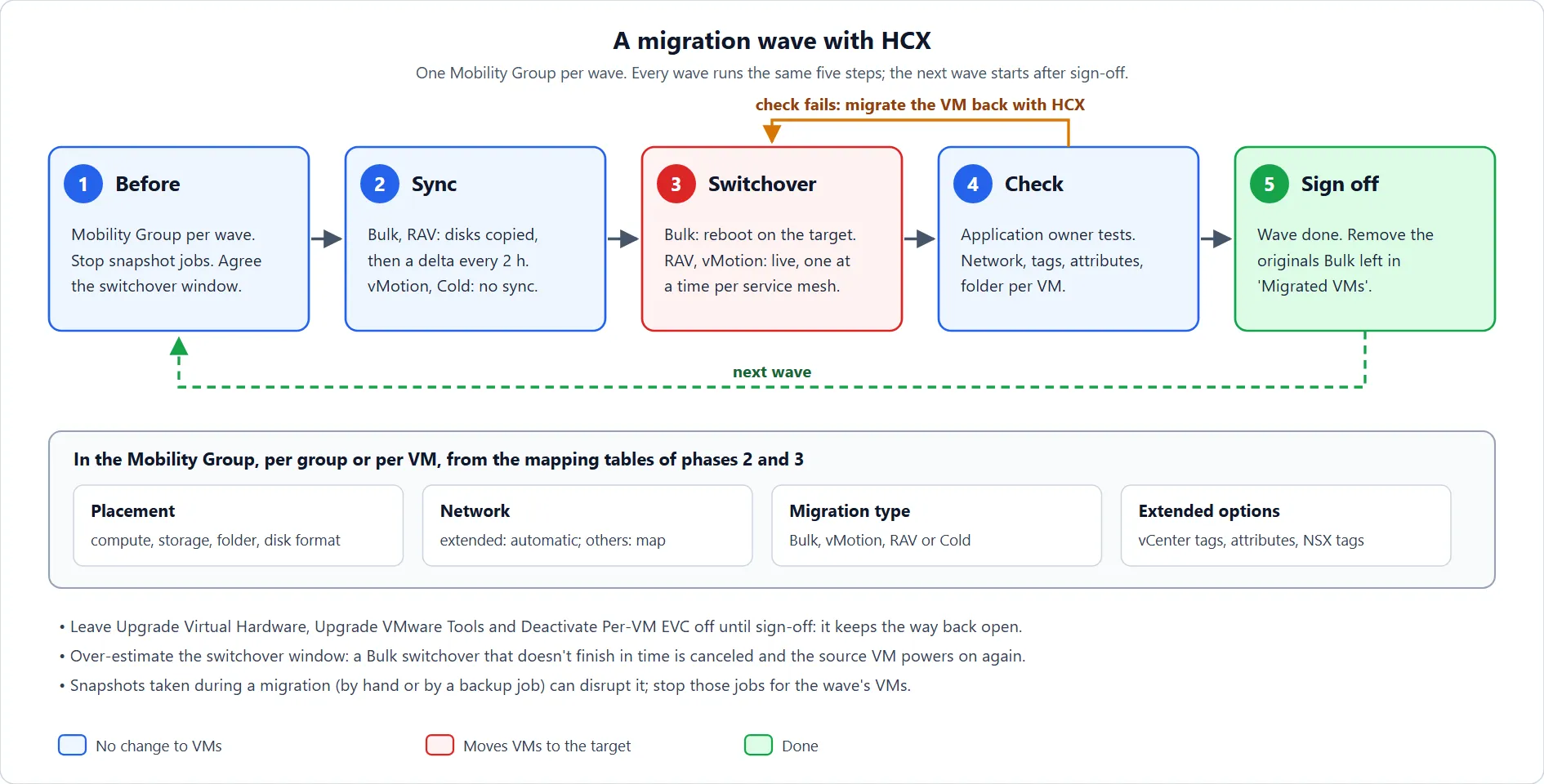
1. Before
- Stop snapshot jobs for the wave’s VMs. “Taking snapshots of a VM during migration, either manually or using a third-party backup solution, can disrupt the migration process. To prevent any impact, it is required to stop those services that may create or remove snapshots during migration” (Migrating Virtual Machines with Mobility Groups).
- Check the VMs against the restrictions of their type (Special cases), and check the target datastores have room: “Extra space may be used temporarily during the migration” (KB 323663).
- Agree the switchover window with the application owner.
- Outside vCenter: stop replication, and tell the backup, monitoring and automation owners which VMs move when (Outside vCenter, per wave).
2. Create the Mobility Group
In the HCX UI, Migration, Create Mobility Group, then (Migrating Virtual Machines with Mobility Groups):
- Source and destination site, and a name: the wave’s name. Migrations “are always started from the source site”.
- VMs: the wave’s VMs. The filters list VMs by cluster, storage and network, which helps to pick an application’s VMs together.
- Destination settings for the group: compute, storage, folder
and disk format, from the mapping tables. “The settings you provide
are applied to all members of the group by default”; override them
per VM where needed. For the folder per VM: VIFolderManager 1.5.0 and
later, imported on the target with
-MoveObjects:$false -Csvbefore the wave, creates the folders and lists per VM its folder path and that folder’s ID on the target vCenter (docs/30, step 5). - Network per VM: extended networks are selected; map the rest.
- Migration type per group, and per VM where the type table says otherwise.
- Options: the Migration Settings step, option by option in Migration Settings, option by option. For Bulk, also consider Force Power-Off VM for VMs that don’t shut down cleanly, and Enable Seed Checkpoint (see When a migration fails).
- Schedules for Bulk and RAV: “The Transfer schedule identifies the date and time when base synchronization to the destination site begins. The Switchover schedule defines the date and time when the final data synchronization occurs and the workload is switched over to the destination site”.
- Validate, then Go.
Leave Expedited Switchover (Bulk) off unless the application owner signs off on the data loss: it “bypass[es] the final offline sync” and you set “an acceptable data loss” with a slider.
3. Sync and switchover
For Bulk and RAV, the disks replicate first; after the initial sync, “a delta synchronization with two-hour recovery point objective (RPO) occurs while waiting for the scheduled switchover”. Start the transfer a few days before the window, so only the delta is left.
At the switchover:
- Bulk: “the source VM is powered off to perform a final off-line synchronization, data consolidation, and VM instantiation at the target data center”. The original is renamed “using a POSIX timestamp suffix” and “copied to the Migrated VMs folder”. If the new VM can’t power on, “it remains powered off, and the original is powered on”.
- RAV: a final delta vMotion, “the source VM is removed, and the migrated VM is connected to the network”.
- HCX vMotion and Cold: one move, no sync phase.
The switchover window. “The switchover window should be over-estimated to accommodate for the lengthy data checksum process and instantiation of the VM on the target” (KB 323663). A Bulk switchover that doesn’t finish in the window is canceled and rolled back, and the source VM powers on again (KB 429534). Write-heavy VMs such as database servers need the most time for the offline sync. Per the same KBs: don’t power off a source VM yourself after the base sync, and don’t restart HCX services during a migration.
Watch the group in the migration view, and the events per VM. The states (Queued, Migration Started, Migration Parked, Migration Failed, Migrated) are listed in Monitoring Mobility Group Activity for Migration Waves.
4. After, check and sign off
For the VMs that arrived:
- Tags, custom attributes, NSX tags, folder: check them against the source, also when the options were ticked.
- Storage policy and network per VM.
- Leave the virtual hardware and VMware Tools alone until the wave is signed off.
- The application owner tests the application.
- Sign off the wave. Then remove the originals that Bulk left in the Migrated VMs folder on the source, and start the next wave.
Migration waves in HCX 9.1
HCX 9.1 can also take the wave plan as input: migration waves are “Synced” from VCF Operations for networks, or “Manually imported” as CSV. Committing a wave “creates the mobility groups for migration”, and then each group is configured, checked (Run Pre-Migration Checks) and run. Once a wave is committed, “the associated workloads cannot be changed” (Migrate Mobility Group Workloads in Migration Waves).
That fits a migration with many waves and a wave plan that is already fixed. For a few waves, creating the Mobility Groups by hand, as above, is enough. The CSV format is in the HCX user guide (Import and Commit Migration Waves); check it there for your build.
Outside vCenter, per wave
The checklist in Migrating without HCX applies here too: replication, backup, monitoring and performance history, automation, vApps, CMDB. HCX adds two things for the backup owner:
- Changed Block Tracking: “Virtual Machines with Change Block Tracking (CBT) can be migrated, but HCX deactivates CBT” (vMotion and RAV). Check how the backup software handles that after the move.
- Two folders on the datastore after RAV: “Replication Assisted vMotion creates two folders at the destination site datastore”, which “might impact other applications, such as backup tools”. A Storage vMotion on the target consolidates them.
Special cases
From the restrictions on the type pages (Bulk, RAV, vMotion and Cold):
| VM has | Bulk | RAV | vMotion |
|---|---|---|---|
| Encryption | Yes, with the same key provider on both sides: “The name and IP address of the KMS must match between the source and target sites”; a Native Key Provider is exported and imported out-of-band | “vSphere VM Encryption is not supported” | Not supported |
| RDM, physical mode | No | No | |
| RDM, virtual mode | Yes, “converted to VMDKs at the destination” | No | No (“can only be migrated using Bulk Migration”) |
| Serial port | Yes | No: “detach such devices”, or use Bulk | No, or use Bulk |
| Mounted ISO | Force Unmount ISO Images | Force Unmount ISO Images | Force Unmount ISO Images |
| Independent disks | Not supported | ||
| Fault Tolerance, multi-writer, shared SCSI bus | No | Turn FT off temporarily; the rest no | No |
| vNVMe controller | No | No | |
| DirectPath I/O | Remove the device first | Remove the device first | |
| vVols at source or target | Not supported |
An empty cell means the type page names no restriction for it. Cold migration “must satisfy the vMotion requirements”. Two more, on the Bulk, RAV and vMotion pages alike: VLAN-trunk port groups aren’t shown in the migration interface, and VMware appliances such as vCenter and NSX Manager can’t be migrated with HCX. A VM with more than 64 disks stalls at 0% base sync on ESX 8.0 and earlier; ESX 8.0 U1 raised the limit (KB 370723).
Shared disks (WSFC, Oracle RAC). None of the live types and not Bulk: “Clustered disks are not supported for host-based replication”. Broadcom’s way is downtime for the whole cluster: “Shut down the source VM and any other cluster nodes” that share the disks, use Cold Migration, and update the other nodes with the new disk locations before powering them on (KB 442091).
Kubernetes nodes, VMs protected by vSphere Replication. Out of scope for a VM migration; see docs/29.
Moving a VM back
HCX migrates in both directions: the vMotion page describes moves from the source to the destination site “(or from the destination site towards the local site)”, and Bulk and RAV can run in reverse. Two things keep that way open:
- The options you left off: virtual hardware, VMware Tools, per-VM EVC (see What HCX carries over).
- The firewall: a reverse Bulk or RAV needs the IX on the source side to reach the source ESX hosts on 902, or it fails with “Storage not accessible error observed” (KB 393791). Test a reverse migration in phase 4, not on the day you need it.
After a Bulk switchover the original is still on the source, powered off and renamed, in the Migrated VMs folder, and “can be used to recover the migrated VM” (Understanding Bulk Migration). That is the quickest way back for a VM that fails its check: power off the copy on the target and power on the original. Don’t remove those originals until the wave is signed off.
Troubleshooting
When a migration fails
- Read the events of the VM in the Mobility Group; “For workloads in a failed state, click the information icon to see details about the failure”.
- Find the error in the table below. For a support case, collect the
logs KB 377590
lists:
/common/logs/admin/app.logon both HCX Managers,/var/log/vmware/hbrsrv.logon the IX (Bulk and RAV) and/var/log/vmware/mobility-agent.logon the IX (vMotion and Cold). - Fix the cause, then retry. For Bulk and RAV, Enable Seed Checkpoint keeps what was already copied: “Without Seed Checkpoint, the HCX rollback process cleans up the target disks created during the migration and all transferred data is lost” (Additional Migration Settings). It needs a datastore, not a datastore cluster. KB 323663 adds: don’t clean up a failed job you want to resume from, because that removes the seed data.
- When a VM can’t move inside the window, cancel it, note it in the wave list, and sign off the wave without it.
Common errors
| Error | Cause | What to do | KB |
|---|---|---|---|
| “Storage not accessible error observed” (Bulk or RAV, forward) | The target IX can’t reach the target ESX hosts on 443, so replication can’t write to the datastore | Allow 443 from the target IX to the target ESX hosts, then retry or resume | 447075 |
| “Storage not accessible error observed”, hangs in “Initial Sync in Progress”, diagnostics clean | The target IX can’t reach the target ESX hosts on 902; app.log: “No accessible host for datastore is found for syncing” | Allow 902 from the target IX to the target hosts | 432334 |
| “Thumbprint exchange with HBR server on appliance … failed” | A proxy on the HCX Manager without local exclusions | Add the local networks to Proxy Exclusions (9443 → Administration → Proxy), restart the HCX Manager services | 402723 |
| “Storage not accessible error observed” (reverse migration) | The IX can’t reach the ESX hosts on 902 | Check the firewall between the IX and the hosts the VM goes back to; redeploying the IX helps when it worked before | 393791 |
| “Storage not accessible error observed”, on HCX older than 4.9 | Stale fleet entries after a partial service mesh cleanup | Fixed in HCX 4.9.0 and later | 314193 |
| Stuck at 0% base sync, no error | The source ESX can’t reach the IX on 31031 (32032 when replication is encrypted; the KB also names 44046 for RAV, which the 9.1 port listings don’t); also MTU, more than one VMkernel tagged for vSphere Replication, a subnet mask mismatch | nc -zv <IX-IP> 31031 (and 32032) from the ESX shell; vmkping -d with the right size; one replication VMkernel per host | 319757 |
| Stuck at 0% base sync for one VM | More than 64 disks on ESX 8.0 or earlier | Reduce to 64 disks, or upgrade the source hosts to 8.0 U1 or later | 370723 |
Stuck at 0% base sync on a retry, NFC_FILE_LOCKED | Stale entries from the earlier failed attempt | Cancel, clean up, and make sure no folder of the attempt is left on the target | 305316 |
| “Migration Canceled by user, rollback completed” at the end of the window | The Bulk switchover didn’t finish within the switchover window | A longer window, or a time with less activity on the VM | 429534 |
vim.fault.DatacenterMismatch at switchover | The destination folder is in another datacenter than the target cluster | Cancel, pick a folder in the target datacenter; if editing the group keeps the old folder, delete the group and create it again | 434030 |
Several of these KBs were written for HCX 4.x; the version is in each article.
Phase 5 is done when
- Every VM in the migration scope is on the target, or written down as staying behind with a reason.
- Every wave is signed off by its application owner.
- Every VM has its folder, vSphere tags, NSX tags (where used), custom attributes and storage policy.
- Replication, backup, monitoring and automation follow the VMs on the target (Outside vCenter, per wave).
- The originals that Bulk left in the Migrated VMs folder are removed, once their wave is signed off.
- Virtual hardware and VMware Tools upgrades, if wanted, are planned as a separate change after sign-off.
Then go on with phase 6, unextending the networks and removing HCX: Cutting over and cleaning up.
Sources
Read word for word on 2026-11-13.
- VCF Operations HCX user guide for VCF 9.1, Migrating Virtual Machines: Migrating Virtual Machines with Mobility Groups, Understanding Bulk Migration, Understanding Replication Assisted vMotion, Understanding vMotion and Cold Migration, Additional Migration Settings, Understanding Virtual Machine Snapshots During Migrations, Migrate Mobility Group Workloads in Migration Waves, Monitoring Mobility Group Activity for Migration Waves
- KB 323663: HCX Bulk Migration operations and best practices
- KB 377590: Troubleshooting HCX Migrations Failures
- Errors: KB 447075, KB 393791, KB 314193, KB 319757, KB 370723, KB 305316, KB 429534, KB 434030
- Building HCX: HCX migration to VCF 9.1 (VCF 9 Deployment Planning guide, docs/38)
- Read on 2026-11-16: KB 416264 (templates with HCX), KB 442091 (SCSI bus sharing)