

Cutting over and cleaning up
Phase 6 of a side-by-side migration: the VMs are on the target, but the source still carries their gateways, other systems still point at it, and HCX (if you used it) still connects the two sites. This page takes those apart in a safe order: per network first, then per environment, until the source can be switched off.
It assumes phase 5 is done for the networks you cut over: every wave on them is signed off (Migrating with HCX or Migrating without HCX).
Facts on this page come from the VCF Operations HCX user guide for VCF 9.1 and Broadcom KB articles, read word for word on 2026-11-13. Each is linked where it’s used. Moving a gateway on the physical network is the network team’s change; this page says what to check around it, not how to configure their routers.
Contents
- Phase 6, at a glance
- The order
- Before you cut over a network
- Where the gateway is, before and after
- Cutting over a network with HCX
- Networks on physical VLANs
- Networks on NSX overlay
- After each network
- Repointing what still points at the source
- Removing HCX
- Retiring the source
- Phase 6 is done when
- Sources
Phase 6, at a glance
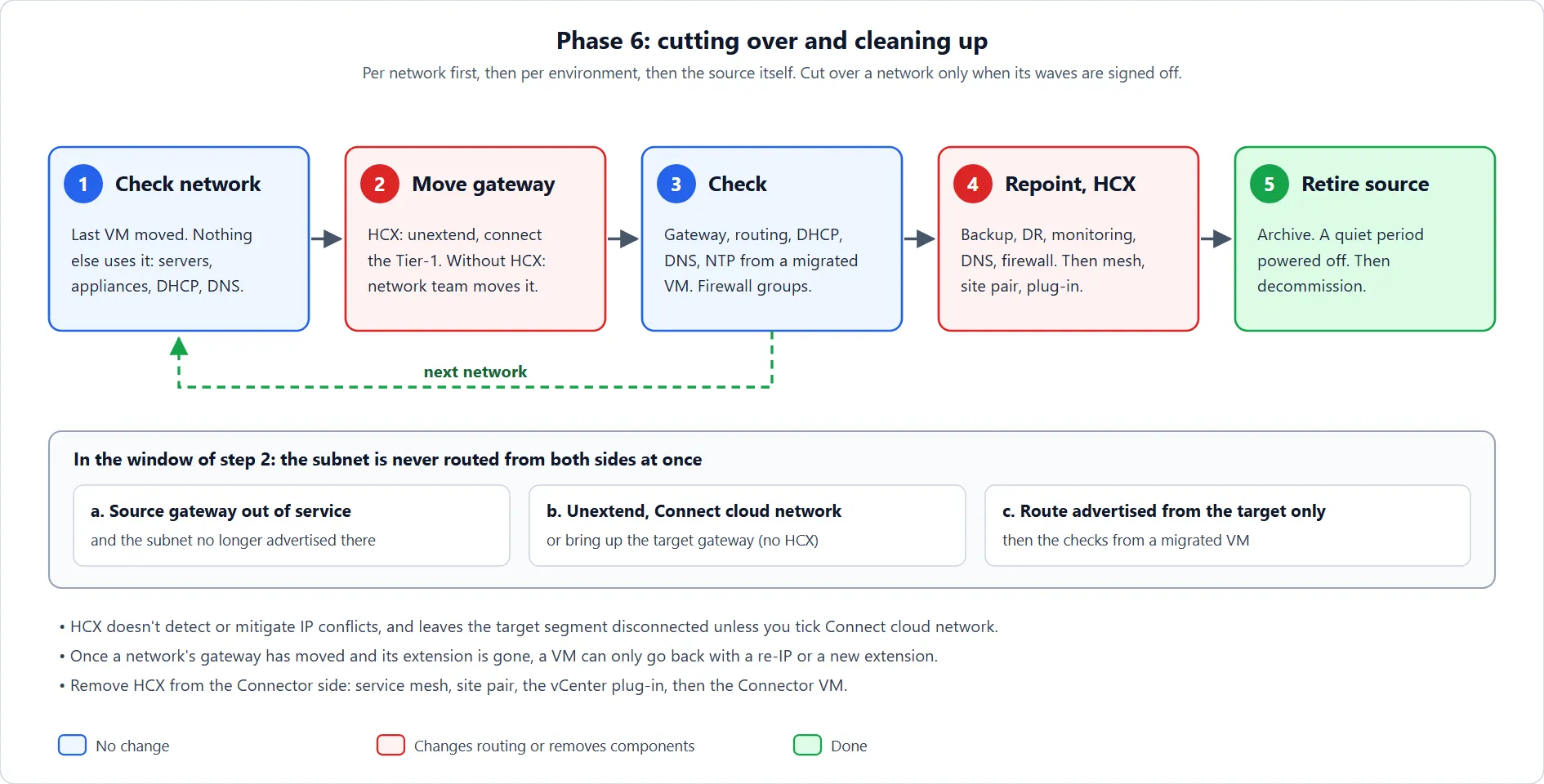
The order
- Per network, when its last VM has moved: check what else still uses it, move its gateway to the target, and check from a migrated VM. Repeat for every network. Networks don’t all have to wait for the last wave: a network whose VMs all moved in wave 2 can be cut over while wave 5 is still running.
- Per environment, when every network is cut over: repoint what still points at the source, then remove HCX.
- The source itself, last: archive, power off for a quiet period, decommission.
The reason for the order: as long as a network is extended or stretched, a VM can still go back; once its gateway has moved and the extension is gone, going back means a re-IP or a new extension. Cut over a network only when its application owners have signed off.
Before you cut over a network
Per network:
- Every VM on it has moved, or is written down as staying behind with a reason. Check the source vCenter for VMs still connected to the port group, including powered-off VMs and templates.
- Nothing else on the source side uses it. A network can carry more than the VMs in your scope: physical servers, appliances, VMs in another vCenter, a firewall or load balancer interface. They lose their gateway when it moves. Ask the network team for the ARP or MAC table of the source gateway on that VLAN: every entry that isn’t a migrated VM is something to resolve first.
- Network services. “Migrated virtual machines that use a source environment DHCP server or that use statically assigned network services like DNS or NTP can lose those services after unextending a network” (Removing a Network Extension). Check where the network’s DHCP relay, DNS and NTP servers are, and that the migrated VMs can still reach them after the cutover.
- Services on the source NSX gateway. NAT rules, load balancer VIPs, a DNS forwarder, VPN endpoints or gateway firewall rules this subnet depends on are in the cutover plan, with their target ready (docs/31, step 5). A service that other subnets still need stays on the source until the last of them has moved.
- Firewall groups. Groups that refer to the extended network or its segment are reviewed (docs/31, 4.8).
- A window with the network team, because this is the moment the routing changes, and a way back agreed for that window.
Where the gateway is, before and after
The cutover of a network depends on two things: where its gateway is now, and where the target design puts it. Write both in the network mapping table (docs/31, step 1), then follow the matching row:
| Gateway now (source) | Gateway after (target) | What the cutover is | Where |
|---|---|---|---|
| Physical, VLAN, with an L2 stretch between the sites as the standard design (DCI, EVPN fabric, anycast gateway), or one L3 device for both sites | Unchanged | No gateway move and no routing change. The stretch stays; only the source hosts leave the VLAN | Physical VLANs, case A |
| Physical router at the source site, VLAN | Physical router at the target site, VLAN (VDS port group or NSX VLAN segment) | The network team moves the gateway and its route; with HCX first unextend, without ticking Connect cloud network | Physical VLANs, case B |
| Physical router, VLAN | NSX Tier-1 on the target (overlay segment or VPC subnet) | The network team takes the old gateway down, NSX on the target takes over: with HCX the unextend with Connect cloud network; without HCX the VMs first move to the NSX segment | Physical VLANs, case C |
| NSX Tier-1, overlay | NSX Tier-1 on the target | Withdraw the subnet from the old NSX, advertise it from the new one | NSX overlay |
Whatever the row: the subnet must never be routed from both sides at once, because neither vSphere nor HCX notices (“Network extension does not detect or mitigate IP conflicts”, Restrictions and Limitations for Network Extension).
Cutting over a network with HCX
What MON changes
Without Mobility Optimized Networking (MON), “all routed traffic for migrated workloads is directed back to the source-site gateway”. With MON, routing to other networks on the target goes through the target’s Tier-1 locally (Understanding Network Extension with Mobility Optimized Networking). MON “is not supported for network extension to VLAN networks or VPC subnets”. Per KB 321599, on a MON-enabled network “HCX Bulk migrated VMs will be MON optimized to use the cloud gateway by default”, while “HCX vMotion/RAV migrated VMs will use the gateway on-premises by default, until transitioned to use the cloud gateway”.
So before the cutover, VMs on one network may route two ways. After the unextend there is one gateway, on the target, for all of them. A firewall between the sites that only saw some of that traffic before sees all of it afterwards; check its rules in the same window.
Unextend
In the HCX UI, Network Extension, select the network, Actions, Unextend Networks (Removing a Network Extension). Two options decide what happens to the target side:
- Connect cloud network to cloud edge gateway after unextending. “By default, the cloud segment/VPC subnet is left disconnected from the edge gateway/VPC respectively after removing the network extension. This is done to prevent an edge gateway from advertising a route to the cloud segment and causing a potential routing conflict with the network in the on-premises data center”. Ticked, the segment connects to its Tier-1, and “If dynamic routing is activated, the network is advertised from the Tier 1 gateway”. Not ticked, “the NSX router interface remains disconnected”, and the VMs have no gateway until someone connects it.
- Block reuse of subnet CIDR (VPC subnets): “To prevent inconsistent network routing from the destination site to the source site when the VPC subnet at the source remains in use”.
“Unextending a network removes the L2 bridged path without removing the NSX segment or Port group, or NSX interface.”
The sequence in the window, so that the subnet is never routed from both sides at once:
- The network team takes the gateway on the source side out of service and stops advertising the subnet there. If the source network is an NSX overlay segment, this step is NSX work on the old Tier-1: see Networks on NSX overlay.
- Unextend, with Connect cloud network to cloud edge gateway after unextending ticked when the target is an NSX segment or VPC subnet on a Tier-1. When the target is a DVPG or an NSX VLAN segment (possible when “the VCF Operations HCX and NSX versions [are] at least 9.1 on both sites”), there is no Tier-1 to connect: the network team brings up the gateway at the target instead (case B).
- Check the route: the subnet is now advertised from the target (dynamic routing) or routed statically to it, and nowhere else.
- Run the checks.
Step 1 before step 2 means a short outage for the network’s routed traffic: agree it as part of the window. HCX doesn’t protect you here: “Network extension does not detect or mitigate IP conflicts” (Restrictions and Limitations for Network Extension).
When the unextend fails
- Force Unextend, for the cases the user guide names: when “the Unextend Networks option fails due to the state of the network extension appliance”, or “Where the source components are no longer available”. It “removes the extension and clears internal operations and processes from the source and the destination sites”.
- “Network unextend failed”, with “Remote site status is down. Use force option to un-stretch network locally” in the source HCX Manager log: the site pair is disconnected because the remote HCX URL is an IP address that doesn’t match the target HCX Manager’s certificate (KB 448117). Fix the site pair, then unextend normally.
- In an NSX Federation environment (a Local Manager later joined to a Global Manager), “the only operation allowed on extended networks” is Force Unextend (Restrictions and Limitations for Network Extension).
Networks on physical VLANs
Here the gateway is a router interface on the physical network (or a pair, with VRRP or HSRP), and the physical network routes the subnet to it: statically or with a routing protocol. That is the network team’s change; this section says what has to happen around it, per case from the table.
Without HCX, the VLAN reached both sides through the physical network and the gateway stayed where it was during the waves (question 2 in docs/29). With HCX, the VLAN on the source was extended to the target by HCX.
Case A: the gateway doesn’t move
The VLAN and its gateway already serve both sites, so the VMs on the target use the same gateway as before. Two common designs:
- The L2 stretch is the standard design of the data centers: a data center interconnect, or an EVPN/VXLAN fabric that carries the VLAN to both sites, often with an anycast gateway (the same gateway IP and MAC address on every site).
- One L3 device serves both sites, reached over the stretched VLAN.
There is no gateway move and no routing change. The cutover is:
- With HCX: Unextend, without Connect cloud network: the target side reaches the gateway over the physical VLAN, not through a Tier-1. If the VLAN was stretched by the fabric from the start, HCX Network Extension wasn’t needed for it: the Mobility Group maps the VMs to the target port group of the same VLAN. Don’t extend such a VLAN with HCX as well: “Network extension does not detect or mitigate loops” (Restrictions and Limitations for Network Extension).
- Run the checks.
- Remove the VLAN from the source hosts’ uplinks once nothing on the source uses it any more, or simply when the source hosts are retired. The stretch between the sites stays: it’s part of the design, not of the migration.
One design check for the network team, not part of the cutover: where is the gateway physically? With an anycast gateway every site routes locally. With a gateway on the source site only, all routed traffic of the migrated VMs crosses the interconnect to the source site and back. That works, but it should be a decision, especially once the source site holds nothing else.
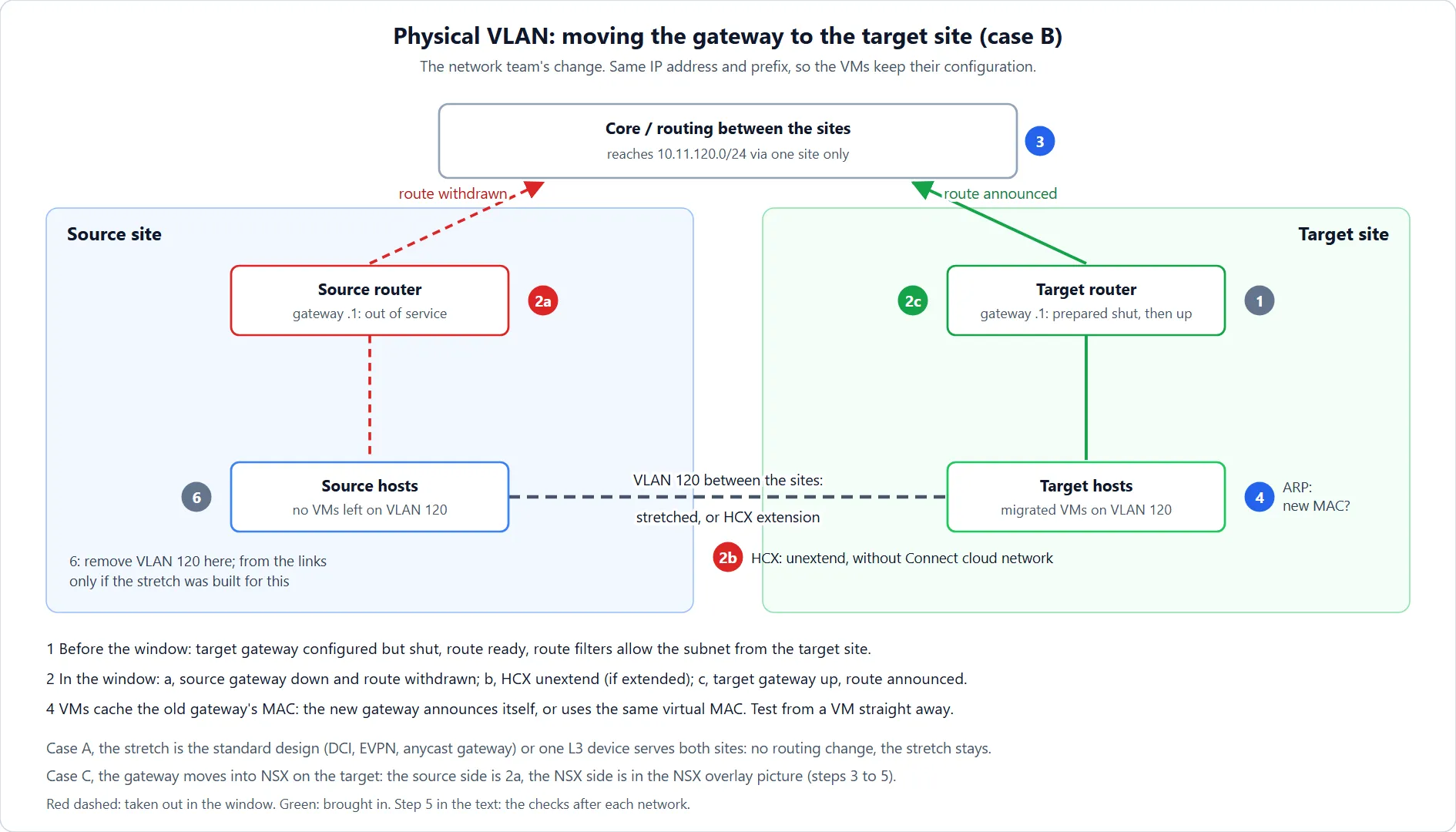
Case B: the gateway moves to a router at the target site
- Before the window: the network team prepares the gateway at the target site, shut, with the same IP address and prefix, and the route for the subnet ready to be announced from there. If the physical network filters routes per peer or per site, the filter must allow the subnet from the target site.
- In the window:
- The old gateway goes out of service, and the route for the subnet is withdrawn at the source site (or the static route to it removed).
- With HCX: Unextend, without Connect cloud network.
- The new gateway comes up and the route is announced from the target site.
- Check the routing: on the core or the routers between the sites, the subnet is now reached via the target site only; nothing still points at the source site for it.
- Check the gateway’s MAC address. The VMs have the old gateway’s MAC address in their ARP cache. If the new gateway has a different MAC address, they reach it only once that entry is refreshed. Agree with the network team how the new gateway announces itself (or that it uses the same virtual MAC), and test it from a VM straight after the switch.
- Run the checks.
- Remove the VLAN from the source hosts. If the stretch between the sites was built for the migration, remove it from the links between the sites too, so that it doesn’t stay stretched by accident; if the stretch is the standard design, it stays (case A).
Case C: the gateway moves into NSX on the target
The subnet ends on a Tier-1 (an overlay segment or a VPC subnet) in the new NSX:
- With HCX: use the sequence in Unextend: the network team takes the physical gateway down and withdraws the route, then the unextend with Connect cloud network connects the segment to its Tier-1, and the new NSX advertises the subnet. Check the new NSX’s side as in Networks on NSX overlay, steps 4 and 5 of the cutover.
- Without HCX: the VMs are on a VLAN port group on the target and have to change to the NSX segment. That changes their network, not their address, and takes them off the VLAN: a change per VM, in its own window, done together with the gateway switch for that subnet. Plan it in the wave plan, not as a quiet cutover.
Networks on NSX overlay
When the source network is an NSX overlay segment, the gateway is not a router interface the network team owns. It is the segment’s downlink on a source Tier-1, and the physical network learns the subnet through a chain of advertisements in NSX. The target has the same chain in its own NSX. Cutting over means moving the subnet from one chain to the other: withdrawn from the old NSX, advertised by the new one, never by both.
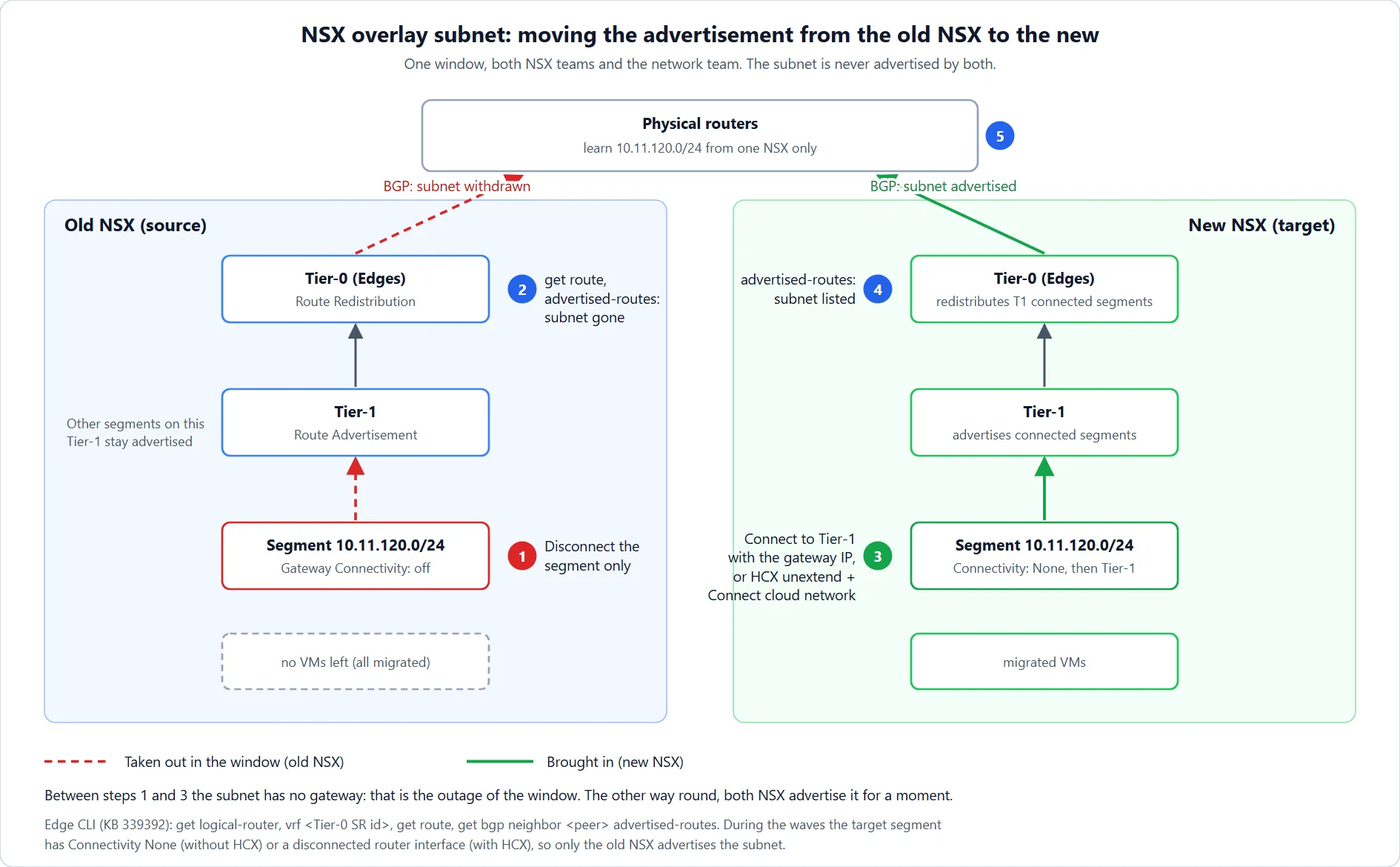
The advertisement chain, in both NSX environments
| Link | Where | What it does |
|---|---|---|
| Segment to Tier-1 | Segment, Connectivity | The segment’s subnet and gateway IP live on the Tier-1 it’s connected to. “None”: “Select this option when you do not want to connect the segment to any upstream gateway (tier-0 or tier-1)” |
| Tier-1 to Tier-0 | Tier-1, Route Advertisement | All Connected Segments and Service Ports advertises every connected segment to the Tier-0; Set Route Advertisement Rules narrows that down |
| Tier-0 to the physical network | Tier-0, Route Redistribution | Under Advertised tier-1 subnets, Connected Interfaces & Segments, Connected Segment: “Redistribute subnets configured on segments and advertised from the connected tier-1 gateway”, into BGP (or OSPF) toward the physical routers |
Sources: Create an NSX Segment, Add an NSX Tier-1 Gateway and Add an NSX Tier-0 Gateway in the NSX administration guide for VCF 9.0 (segment, Tier-1, Tier-0). The source NSX 4 has the same three settings.
The lever for one subnet is the segment’s connectivity, not the Tier-1’s route advertisement: All Connected Segments covers every segment on that Tier-1, and the other segments on the old Tier-1 may still be in use. Disconnecting one segment takes only its subnet out of the chain. NSX allows the change both ways: “You can change the connectivity of a gateway-connected segment from one gateway to another gateway”, and “you can change the connectivity of segment from “None” to a tier-0 or tier-1 gateway”, as long as “the gateways and the connected segments are in the same transport zone” (Create an NSX Segment).
During the waves: one gateway, on the old side
The target segment must exist for the VMs to land on, but without a gateway, or its subnet is advertised twice:
- With HCX: HCX handles the target side. While the network is extended, the target Tier-1’s interface for the segment is not in service: the unextend page says “If you don’t select this option, the NSX router interface remains disconnected”, and the restrictions page that an extension to an existing segment “disconnects the NSX router interface from the network” (Restrictions and Limitations for Network Extension). It is connected only when you tick Connect cloud network to cloud edge gateway after unextending.
- Without HCX: create the target segment with Connectivity None
(docs/31, step 3).
“If a segment is not connected to a gateway, subnet is optional”;
write the gateway IP in the mapping table for the cutover. Without HCX
there is also no layer 2 between the old and the new segment, so VMs on
the target can’t reach VMs still on the source, or the gateway. That
leaves two ways, chosen per subnet in phase 0:
- One window per subnet: every VM on the subnet moves in the same window as the cutover. A wave is then a subnet, not an application.
- A layer 2 bridge during the migration: NSX Edge bridging “connects NSX overlay logical segment with a traditional VLAN at layer 2” and “is mainly for migration scenarios (physical to virtual or virtual to virtual)” (Add and attach NSX Edge Bridge Profile to a Segment). Bridging each side’s segment to the same VLAN, trunked between the sites, joins them at layer 2. That layout (a bridge in each NSX on one shared VLAN) is a design, not a documented Broadcom procedure: it needs the Edge prerequisites from that page on both sides, it is a loop risk if anything else joins that VLAN, and it must be proven in phase 4 (Proving the path) before a wave depends on it.
The cutover
In one window, with the NSX administrators of both environments and the network team:
- Old NSX: disconnect the segment from its Tier-1: Networking, Segments, edit the segment, turn off Gateway Connectivity (the NSX DHCP scenarios page describes this as the way to “disconnect the segment temporarily from the gateway”). With DHCP on the segment, read that page first: changing a segment’s connectivity affects existing leases (Scenarios: Impact of Changing Segment Connectivity on NSX DHCP).
- Old NSX, check it’s gone: on each Edge of the old Tier-0,
get logical-router, thenvrf <id>of the Tier-0 SR, thenget route: the subnet is no longer there. Thenget bgp neighbor <peer-ip> advertised-routesper BGP peer: the subnet is no longer advertised (KB 339392 lists these commands; advertised-routes only works “if connection is in Established state”). - New NSX: connect the target segment to its Tier-1 with the gateway IP from the mapping table (without HCX), or unextend with Connect cloud network to cloud edge gateway after unextending (with HCX).
- New NSX, check it’s there: the new Tier-1 advertises connected
segments (or has a rule that covers this subnet), the new Tier-0
redistributes advertised Tier-1 connected segments, and on its Edges
get bgp neighbor <peer-ip> advertised-routesnow lists the subnet. - The gateway services of this subnet, from the cutover plan
(docs/31, step 5):
on the old gateway, disable the NAT rules and the DNS service (or
remove the VIP, VPN session) that belong to this subnet; on the new
gateway, enable or create them. Their IPs follow the same chain as the
subnet: on the new Tier-1 the matching route advertisement types (All
NAT IP’s, All DNS Forwarder Routes, All LB VIP Routes, All IPSec
Local Endpoints) must be on, and on the old Tier-0 Edges the IPs must
be gone from
advertised-routes, as in steps 2 and 4. - The physical network: the network team confirms the subnet is learned from the new Tier-0’s peers only. If the physical side filters what it accepts per peer (prefix lists), that filter must allow the subnet from the new peers; agree that change before the window.
- Run the checks.
Between steps 1 and 3 the subnet has no gateway: that is the outage of the window. Doing step 3 before step 1 avoids it, but then both NSX environments advertise the subnet for a moment, and the physical network picks one; agree with the network team which risk they prefer, and keep the gap short either way.
When the old Tier-1 is empty after its last segment is cut over, remove it and its Tier-0 redistribution entries when the source is retired, not before: until then it’s the way back.
After each network
From a migrated VM on the network, and from outside:
| Check | Expected |
|---|---|
| Ping the gateway | Answers, from the target |
| Reach a VM on another network on the target, and one still on the source | Both work |
| Reach the VM from a client network (users, management) | Works |
| DHCP lease renewal, DNS resolution, NTP | Work, from servers the VM can still reach |
| A traceroute from the VM | The path no longer goes through the source site |
| Firewall rules on the target that should hit | They hit |
| Each gateway service of the subnet: a NAT translation, a VIP, a DNS query to the forwarder, a VPN tunnel | Works, through the target gateway |
Then, per network, update the network mapping table (docs/31, step 1) with the date of the cutover.
Repointing what still points at the source
When every network is cut over, go through the systems that know the source by name or address. Most were handled per wave (docs/32, Outside vCenter); this is the final sweep:
| What | Check |
|---|---|
| Backup | No job selects VMs through the source vCenter; the source vCenter is no longer a backup source |
| vSphere Replication, DR | Replication runs from the target (KB 421671); no protection group or recovery plan still names the source |
| Monitoring, VCF Operations | No adapter, alert or dashboard still collects from the source vCenter or hosts; decide how long its history is kept |
| Automation | No cloud account, script or scheduled job still connects to the source vCenter |
| DNS | No CNAME or alias still points at a source vCenter, host or appliance; records you’ll remove are listed |
| Firewall rules | Rules for the migration (vCenter to vCenter, ESX to ESX, HCX) are listed for removal |
| Identity | Service accounts that only the source used (vCenter, backup, monitoring) are listed for removal |
| CMDB and documentation | Every VM shows its new vCenter, cluster and datastore |
A way to find what you missed: for a week before you switch the source off, watch its vCenter for logins and API sessions, and the firewall for traffic to it. Every hit is a system that still points there.
Removing HCX
Remove HCX when every extended network is unextended and no migration is running. Broadcom’s order for a clean decommission (KB 317510), on the source (Connector) side:
- “Ensure that any on-going migrations are completed or cancelled”.
- “Remove all disaster recovery protections” (if HCX DR was used).
- “Un-stretch all networks” (done network by network above).
- Delete every service mesh: “Infrastructure —> Interconnect —> Service Mesh”, Delete. Start it from the Connector side: that “will remove the Service Mesh and associated HCX appliances from both the Connector and Cloud sites” (KB 314195).
- Delete the site pair: “Infrastructure —> Site Pairs —> Delete Site Pair”.
- Unregister the HCX plug-in from the source vCenter. For vCenter 8.0 and later the extensions are “com.vmware.hcx.plugin” and “com.vmware.hcsp.alarm”; the KB’s first option is Administration, Solutions, Client Plugins, select the HCX plug-in, Remove. The KB asks for “a snapshot and a backup of the current vCenter Server Appliance VM before making these changes”, and a change window, because the vSphere Client service may have to be restarted.
- “Power-off the HCX Connector VM and delete it from disk”.
On the target, decide whether to keep the HCX Manager for later migrations or remove it; and close the HCX firewall rules either way (the deployment-planning guide, HCX migration to VCF 9.1, §11 and §3.4).
When it gets stuck. If the service mesh won’t delete, KB 314195 lists what to try first (refresh the site pair until it shows Connected, remove the extensions, then delete from the Connector side) and only then the Force Delete option, which “will remove the HCX appliances associated with the Service Mesh and the Service Mesh itself even if the remote site cannot be reached”. A site pair that can’t be removed in the UI can be deleted through the HCX API (KB 314206); the KB gives the session call for HCX 9.x. Both KBs call manual removal a last resort.
Retiring the source
- Nothing runs on it that belongs to the migration scope. The copies that a migration left behind are removed once their wave was signed off: the originals Bulk left in Migrated VMs (docs/33), and copies from Keep VMs on the source (docs/32).
- Archive the last baseline export of the source (docs/29, phase 0), together with the wave lists, the logs, and the phase 4 evidence sheet. Keep them in the engagement’s storage, not in a repository.
- A quiet period. Power the source vCenter and hosts off, but don’t wipe them yet. Agree how long with the customer. Anything that breaks in that period was still using the source; you can still power it on.
- Backups of the source stay until their retention ends; check with the backup owner before removing the source vCenter from the backup software.
- Decommission: remove the source vCenter from the tools that still list it, remove its DNS records, firewall rules and service accounts (the lists from Repointing), and wipe or hand back the hardware.
- Hosts that move to the target are commissioned there as new hosts: see the deployment-planning guide, Host commissioning.
Phase 6 is done when
- Every migrated network has its gateway on the target, and its checks passed.
- No network is extended or stretched between the sites any more for the migration (a stretch that is the data centers’ standard design stays), and no Edge bridge from the migration is left.
- Every migrated subnet is advertised by the new NSX (or the new gateway) only; the old Tier-0s no longer advertise it.
- Nothing points at the source: backup, DR, monitoring, automation, DNS, firewall rules, CMDB.
- HCX is removed (service mesh, site pair, plug-in, Connector), and its firewall rules are closed.
- The exports, wave lists, logs and evidence sheet are archived.
- The source was powered off for the agreed quiet period without anything breaking, and is decommissioned.
That ends the side-by-side migration. Back to the overview: Side-by-side migration.
Sources
Read word for word on 2026-11-13.
- VCF Operations HCX user guide for VCF 9.1: Removing a Network Extension, Understanding Network Extension with Mobility Optimized Networking, Restrictions and Limitations for Network Extension
- KB 321599: Mobility Optimized Networking (MON) Troubleshooting Guide
- KB 448117: HCX failed to unextend network with error message “Network unextend failed”
- KB 317510: Uninstall a deployment from Connector & Cloud
- KB 314195: Manual removal of an HCX Service Mesh and Compute Profile
- KB 314206: Manual removal of stale Site Pairing
- NSX administration guide for VCF 9.0: Create an NSX Segment, Add an NSX Tier-1 Gateway, Add an NSX Tier-0 Gateway, Scenarios: Impact of Changing Segment Connectivity on NSX DHCP, Add and attach NSX Edge Bridge Profile to a Segment
- KB 339392:
Troubleshooting NSX BGP (Edge CLI:
get logical-router,vrf,get route,get bgp neighbor ... advertised-routes) - KB 421671: Cross vCenter migration is not supported for VMs protected by vSphere Replication