

Migrating without HCX
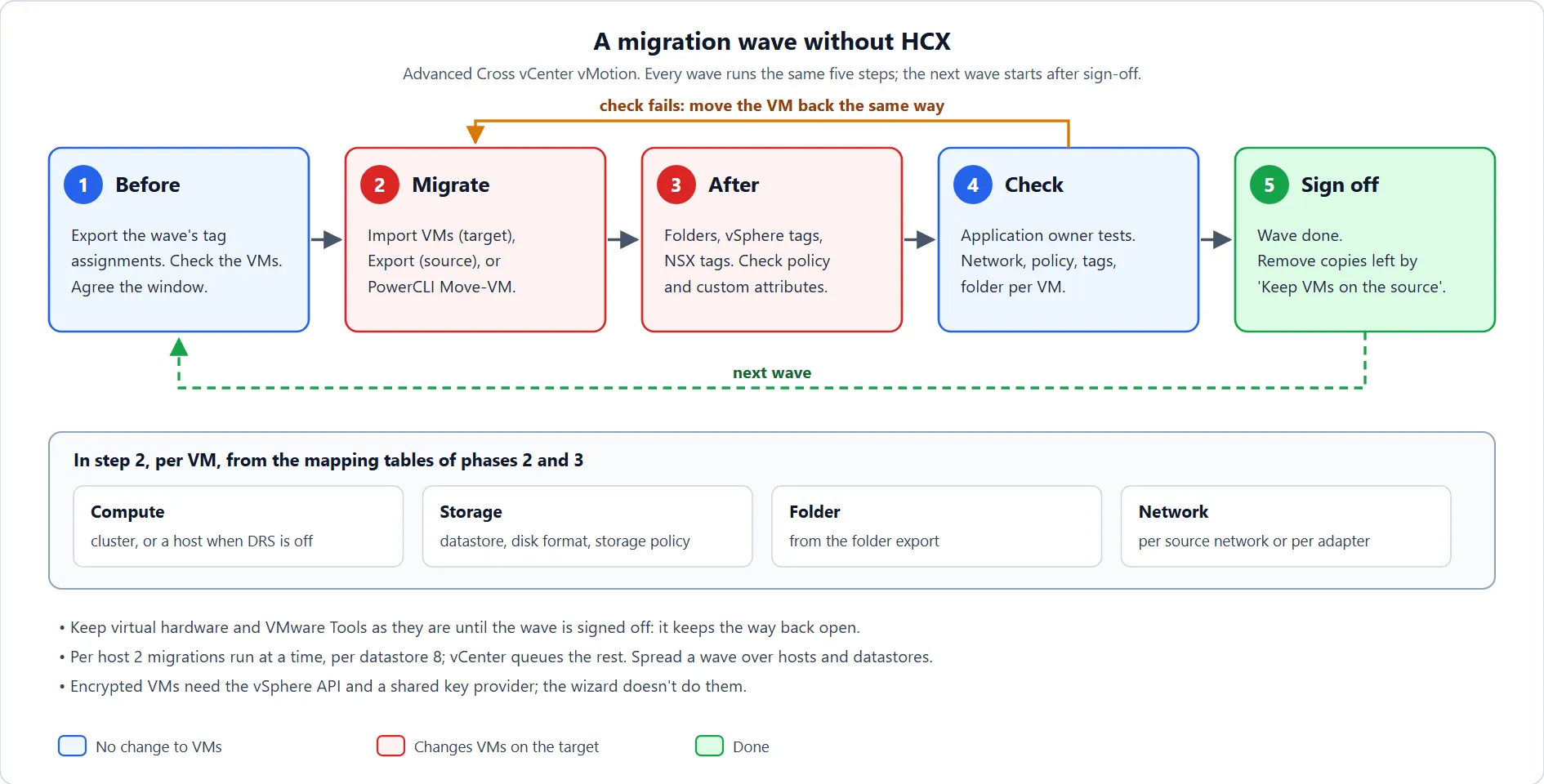
Phase 5 of a side-by-side migration, for the route without HCX: the VMs move with Advanced Cross vCenter vMotion, the vMotion between two vCenters that vSphere has built in. This page helps you choose how to start each migration, size the waves, and run every wave the same way: prepare, migrate, restore what doesn’t travel with the VM, check, sign off.
It assumes phases 2 to 4 are done: the configuration (docs/30) and the networks and firewall (docs/31) exist on the target, and the path is proven: every flow tested and one test VM has gone there and back (docs/34, Proving the path).
Facts on this page come from the vSphere 9.1 TechDocs, Broadcom KB articles and the PowerCLI help, read word for word on 2026-11-13. Each is linked where it’s used. The route with HCX is in Migrating with HCX.
Contents
- The wave, at a glance
- Before the first wave
- Which way to start a migration
- Sizing a wave
- Running a wave
- The wave script
- Outside vCenter, per wave
- Special cases
- Troubleshooting
- Moving a VM back
- Phase 5 is done when
- Sources
The wave, at a glance
Before the first wave
Go through this once, before wave 1. The tests behind each item are in Proving the path.
- Phases 2 to 4 are done, and the test VM went there and back.
- Ports. Advanced Cross vCenter vMotion needs “Port 8000 on the ESX host for vMotion”, “Port 902 on the ESX host for NFC” and “Port 443 between the two vCenter instances” (vSphere 9.1, Import or Clone).
- The same broadcast domain. vCenter checks some things, but not everything: “If the source and destination distributed switches are not in the same broadcast domain, virtual machines lose network connectivity after migration”, and vCenter “does not perform checks for and notify you about” that (Network Compatibility Checks). When VMs keep their IP addresses, their VLANs must reach the target hosts (question 2 in docs/29).
- VDS versions. vCenter refuses a vMotion between distributed switches of different versions (same page, and KB 318582). Your answer to question 4 in docs/29 decides how you handle it: a migration switch at the source’s version, the KB’s workaround, or powered-off migration.
- An account with the privileges on both vCenters: “Resource.Query vMotion”, plus “Resource.Migrate powered on virtual machine” or “Resource.Migrate powered off virtual machine” (vSphere 9.1, Import or Clone). Two more that a custom role often lacks: Host > Inventory > Modify cluster on the target cluster, for VMs with affinity rules or HA/DRS overrides (KB 429035), and permissions on the target distributed switch (KB 425574).
- DNS and certificates. Each vCenter resolves the other’s FQDN, forward and reverse (KB 458498), and the source vCenter trusts the root CA that issued the target vCenter’s machine certificate (KB 433237). Both show up as errors only when the first migration starts; see Troubleshooting.
- Encrypted VMs are listed separately; they need another way (see Special cases).
- The tag assignment export from phase 2 exists (docs/30, step 2).
Which way to start a migration
Three ways, all doing the same Advanced Cross vCenter vMotion:
| Way | Where | When | Version rule (TechDocs) |
|---|---|---|---|
| Import VMs | Target vCenter: right-click a host or cluster, Import VMs | The default: the target is always new enough | Target vCenter “7.0 Update 1c or later”; source vCenter “6.7 or later”; destination hosts “6.7 or later” |
| Export | Source vCenter: select VMs, Migrate, Cross vCenter export | When you prefer to work from the source | Source vCenter “7.0 Update 1c or later” to export, “7.0 Update 3 or later” to clone; target “6.7 or later” |
PowerCLI Move-VM | A workstation connected to both vCenters | Larger numbers of VMs, repeatable waves, a script per wave | PowerCLI: “You can move virtual machines between vCenter Server systems of vSphere version 6.0 and later” |
Version rules from Import or Clone and Export or Clone. Both pages: Advanced Cross vCenter vMotion “does not depend on vCenter linking and you can migrate virtual machines across vCenter systems in different vCenter Single Sign-On domains”.
Both wizards offer Keep VMs on the source vCenter (“performs a VM clone operation”): the VM is copied and the original stays. That’s useful for a test or for a VM that must be able to go back without a second migration, but never run the copy and the original on the same network at the same time.
Sizing a wave
A wave is limited by the application owners’ time, and by what vSphere runs at once. vCenter queues what doesn’t fit (Limits on Simultaneous Migrations):
- A migration to another vCenter moves both the VM and its disks, which is “vMotion without shared storage”: it “inherits the network, host, and datastore costs” of vMotion and Storage vMotion.
- Per host: “vMotion Without Shared Storage | 7.0, 8.0, 9.0, 9.1 | 2 | 4”: two at a time per host.
- Per datastore: a maximum cost of 128, and Storage vMotion costs 16 on the source and on the destination datastore: eight at a time per datastore.
- Per network: a maximum cost of 8 on 10GigE (4 on 1GigE).
So spread a wave over several source hosts and target datastores; a wave of 20 VMs that all sit on one host runs two at a time. More than that is queued, not refused.
In the wizard, “If you want to migrate more than one virtual machine, the selected virtual machines must be in the same power state”: split a wave into a powered-on and a powered-off batch.
Check. Each wave lists its VMs per application, their source hosts and target datastores, the window, and who signs it off.
Running a wave
1. Before
-
Export the tag assignments of the wave’s VMs, right before you start. Tag assignments don’t travel with the VM (Jim Millard, Migrating tags after cross-vCenter vMotion). With VITagManager, which takes the custom attribute values along too, for the VMs of wave 1 in the wave list:
$waveVMs = (Import-Csv <working-folder>\waves.csv | Where-Object Wave -eq 1).VM
.\Invoke-VITagManager.ps1 -vCenterServer <source-vcenter> -Mode Export -Content Assignments -VMName $waveVMs -BackupDirectory <working-folder>\tags
The wave script below exports the tags itself, with plain PowerCLI.
-
Check the VMs: not in a state that blocks vMotion (see Virtual Machine Conditions and Limitations for vSphere vMotion), disks in persistent mode or RDMs (“Virtual machine disks must be in persistent mode or be raw device mappings (RDMs)”, Requirements and Limitations for vMotion Without Shared Storage).
-
Agree the window with the application owner.
-
Outside vCenter: stop replication, and tell the backup, monitoring and automation owners which VMs move when (Outside vCenter, per wave).
2. Migrate
With the wizard (Import VMs on the target). Right-click the target cluster or host, Import VMs, then (vSphere 9.1, Import or Clone):
- Source vCenter: a saved one, or its FQDN and credentials.
- VMs: the wave’s VMs (all in the same power state).
- Compute: a cluster, or a host when the cluster has no DRS (“If DRS is not enabled for a cluster, select a specific host”).
- Storage: disk format, the storage policy from your phase 2 mapping, and the datastore.
- Folder: the VM’s folder from the folder export. Picking it here saves the folder step afterwards.
- Networks: a target network per source network, or per network adapter with Advanced. Use the network mapping table from docs/31.
- Finish. “If errors occur during the migration, the virtual machines revert to their original states and locations.”
With PowerCLI (Move-VM), for larger waves. For a whole wave, use
the wave script (read its use-at-your-own-risk note
first; it covers this example too). The core of it, for one VM,
connected to both vCenters:
$src = Connect-VIServer <source-vcenter>
$dst = Connect-VIServer <target-vcenter>

$vm      = Get-VM -Server $src -Name '<vm>'
$nics    = Get-NetworkAdapter -VM $vm
$pg      = Get-VDPortgroup -Server $dst -Name '<target-port-group>'
$ds      = Get-Datastore -Server $dst -Name '<target-datastore>'
$folder  = Get-Folder -Server $dst -Name '<target-folder>' -Type VM
$policy  = Get-SpbmStoragePolicy -Server $dst -Name '<target-policy>'
$cluster = Get-Cluster -Server $dst -Name '<target-cluster>'

Move-VM -VM $vm -Destination $cluster -Datastore $ds -NetworkAdapter $nics -PortGroup $pg `
  -InventoryLocation $folder -StoragePolicy $policy
-PortGroup takes “one or equal to the number of the specified network
adapters”; -StoragePolicy “is attached to VMHome and all hard disks”;
and “When you move a virtual machine from one vCenter Server system to
another, only datastores are supported as storage destinations” (PowerCLI
help, Move-VM). The help’s own cross-vCenter examples use a host as
-Destination; a cluster works when DRS places the VM. With -RunAsync
the cmdlet “returns immediately without waiting for the task to
complete”, so you can start several and let vCenter queue them.
3. After
For the VMs that arrived:
-
Folders: if you didn’t pick them in the wizard, run VIFolderManager’s import with
-MoveObjects(dry run first); VMs that haven’t arrived are listed and skipped (docs/30, step 5). -
vSphere tags: re-apply the assignments from the wave’s export, dry run first, then the same command without
-DryRun. Pick the wave’s export file in the menu (the newest is marked):.\Invoke-VITagManager.ps1 -vCenterServer <target-vcenter> -Mode Import -Content Assignments -VMName $waveVMs -BackupDirectory <working-folder>\tags -DryRunVMs that haven’t arrived are counted as not found and listed in the log, so a partial wave is fine. Tags that are already there are left alone; a tag in a one-tag-per-object category is skipped when the VM already has another one. VMs are matched by name; when a name occurs twice on the target, the VM’s UUID decides, otherwise the VM is skipped (VITagManager README; lab-verified, 2026-11-16).
-
NSX tags, when the target uses the distributed firewall (docs/31, 4.9).
-
Storage policy and custom attributes: check each VM against the policy mapping from phase 2; custom attribute values travel with the VM when the attribute exists on the target (KB 344959).
-
Leave the virtual hardware and VMware Tools alone until the wave is signed off. An upgrade there is one more thing that stands in the way of moving the VM back.
4. Check and sign off
- The application owner tests the application.
- Each VM has its network, storage policy, tags (vSphere and NSX) and folder.
- Then sign off the wave, and start the next one.
The wave script
For waves of more than a handful of VMs, one script reads the wave list, checks every row, and moves, logs and re-tags the wave in one run. It doesn’t replace the checks in Running a wave; it makes the migrate step repeatable.
Use at your own risk. This script and the PowerCLI examples on this page are community examples, not Broadcom products, and they come without support or warranty. Read the script before you run it, test it in a lab or on a non-production VM first, use the dry run, check the wave list and the log, and check the result yourself afterwards. You are responsible for what it changes in your environment. The toolkits mentioned on this page fall under the disclaimer in docs/29.
Not lab-tested yet. The script is built from the PowerCLI help (VCF.PowerCLI 9.1.1) and parses on PowerShell 7 and Windows PowerShell 5.1, but it hasn’t moved a VM in a lab. Run it on the phase 4 test VM, as a wave of one, before the first real wave.
The wave list
One CSV for the whole migration, one row per VM, filled from the mapping tables of phases 2 and 3:
Wave,VM,TargetCluster,TargetHost,TargetDatastore,TargetFolder,TargetPolicy,PortGroups
1,app01-web,wld01-cl01,,wld01-vsan01,App01,vSAN-Default,pg-web-v110
1,app01-db,wld01-cl01,,wld01-vsan01,App01,vSAN-FTT2,pg-db-v120;pg-backup-v190
2,app02-web,wld01-cl02,esx05.example.com,wld01-nfs01,App02,,pg-web-v110- TargetHost is optional: fill it for a cluster without DRS (“If DRS is not enabled for a cluster, select a specific host”, Import or Clone). Otherwise the script uses TargetCluster.
- TargetFolder is the folder’s name; the script stops when that name exists more than once in the target vCenter. Give such folders unique names, or fill them in afterwards with VIFolderManager.
- TargetPolicy is optional; empty keeps the datastore’s default.
- PortGroups lists one port group per network adapter, separated by
;, in the order of the VM’s adapters (Network adapter 1, 2, …).Move-VMmaps them in that order.
The script
Save it as Move-Wave.ps1 in the working folder:
# Move-Wave.ps1: move one wave from the wave list. A dry run unless -Apply.
param(
  [Parameter(Mandatory)][string]$SourceVC,
  [Parameter(Mandatory)][string]$TargetVC,
  [Parameter(Mandatory)][string]$WaveCsv,
  [Parameter(Mandatory)][int]$Wave,
  [Parameter(Mandatory)][string]$WorkingFolder,
  [switch]$Apply
)
$src   = Connect-VIServer $SourceVC
$dst   = Connect-VIServer $TargetVC
$stamp = Get-Date -Format 'yyyyMMdd-HHmm'
$rows  = Import-Csv $WaveCsv | Where-Object { [int]$_.Wave -eq $Wave }

function One($items, $what) {
  # exactly one match, or a reason why not
  $list = @(@($items) | Where-Object { $null -ne $_ }); $n = $list.Count
  if ($n -eq 1) { return $list[0], $null }
  if ($n -eq 0) { return $null, "$what not found" }
  return $null, "$what ambiguous ($n matches)"
}

# 1. Check every row before anything moves
$plan = foreach ($r in $rows) {
  $issues = @()
  if (Get-VM -Server $dst -Name $r.VM -ErrorAction SilentlyContinue) {
    [pscustomobject]@{ VM = $r.VM; Skip = 'already on target'; Issues = '' }; continue
  }
  $vm, $e = One (Get-VM -Server $src -Name $r.VM -ErrorAction SilentlyContinue) 'VM on source'; if ($e) { $issues += $e }
  $destItems = if ($r.TargetHost) { Get-VMHost -Server $dst -Name $r.TargetHost -ErrorAction SilentlyContinue }
               else { Get-Cluster -Server $dst -Name $r.TargetCluster -ErrorAction SilentlyContinue }
  $dest,   $e = One $destItems 'target host or cluster'; if ($e) { $issues += $e }
  $ds,     $e = One (Get-Datastore -Server $dst -Name $r.TargetDatastore -ErrorAction SilentlyContinue) 'datastore'; if ($e) { $issues += $e }
  $folder, $e = One (Get-Folder -Server $dst -Name $r.TargetFolder -Type VM -ErrorAction SilentlyContinue) 'folder'; if ($e) { $issues += $e }
  $policy = $null
  if ($r.TargetPolicy) {
    $policy, $e = One (Get-SpbmStoragePolicy -Server $dst -Name $r.TargetPolicy -ErrorAction SilentlyContinue) 'storage policy'; if ($e) { $issues += $e }
  }
  $pgs = foreach ($name in ($r.PortGroups -split ';')) {
    $pg, $e = One (Get-VDPortgroup -Server $dst -Name $name -ErrorAction SilentlyContinue) "port group $name"
    if ($e) { $issues += $e } else { $pg }
  }
  $nics = if ($vm) { Get-NetworkAdapter -VM $vm }
  if ($vm -and @($nics).Count -ne @($r.PortGroups -split ';').Count) {
    $issues += "$(@($nics).Count) network adapters, $(@($r.PortGroups -split ';').Count) port groups"
  }
  if ($vm -and $vm.ExtensionData.Config.KeyId) { $issues += 'encrypted VM, see Special cases' }
  [pscustomobject]@{ VM = $r.VM; Skip = ''; Issues = ($issues -join '; ')
    VmObj = $vm; Dest = $dest; Ds = $ds; Folder = $folder; Policy = $policy; Nics = $nics; Pgs = @($pgs) }
}
$plan | Format-Table VM, Skip, Issues -AutoSize -Wrap
$todo = @($plan | Where-Object { -not $_.Skip -and -not $_.Issues })
"$($todo.Count) of $(@($plan).Count) VMs ready to move."

# 2. Export the tag assignments of the VMs that will move
$tagFile = Join-Path $WorkingFolder "tags-wave-$Wave-$stamp.csv"
if ($todo.Count) {
  Get-TagAssignment -Server $src -Entity $todo.VmObj | Select-Object `
    @{N='VM';E={$_.Entity.Name}}, @{N='Category';E={$_.Tag.Category.Name}}, @{N='Tag';E={$_.Tag.Name}} |
    Export-Csv -Path $tagFile -NoTypeInformation
}
if (-not $Apply) { 'Dry run: nothing moved. Fix the issues, then run again with -Apply.'; return }

# 3. Start all moves; vCenter queues what doesn't fit
$tasks = foreach ($p in $todo) {
  $move = @{ VM = $p.VmObj; Destination = $p.Dest; Datastore = $p.Ds; NetworkAdapter = $p.Nics
             PortGroup = $p.Pgs; InventoryLocation = $p.Folder; RunAsync = $true; Confirm = $false }
  if ($p.Policy) { $move.StoragePolicy = $p.Policy }
  try   { [pscustomobject]@{ VM = $p.VM; Task = (Move-VM @move -ErrorAction Stop); Error = '' } }
  catch { [pscustomobject]@{ VM = $p.VM; Task = $null; Error = $_.Exception.Message } }
}

# 4. Wait for each task and log the outcome
$result = foreach ($t in $tasks) {
  $state = 'Error'; $err = $t.Error
  if ($t.Task) {
    try   { $null = Wait-Task -Task $t.Task -ErrorAction Stop; $state = 'Success' }
    catch { $err = $_.Exception.Message }
  }
  [pscustomobject]@{ VM = $t.VM; State = $state; Error = $err; Finished = Get-Date }
}
$result += $plan | Where-Object { $_.Skip -or $_.Issues } |
  ForEach-Object { [pscustomobject]@{ VM = $_.VM; State = 'Skipped'; Error = "$($_.Skip)$($_.Issues)"; Finished = Get-Date } }
$result | Export-Csv -Path (Join-Path $WorkingFolder "wave-$Wave-$stamp.csv") -NoTypeInformation
$result | Format-Table -AutoSize -Wrap

# 5. Re-apply the tags on the VMs that arrived
$arrived = @($result | Where-Object State -eq 'Success').VM
if ($arrived -and (Test-Path $tagFile)) {
  Import-Csv $tagFile | Where-Object { $_.VM -in $arrived } | ForEach-Object {
    $vm  = Get-VM -Server $dst -Name $_.VM
    $tag = Get-Tag -Server $dst -Category $_.Category -Name $_.Tag
    New-TagAssignment -Server $dst -Entity $vm -Tag $tag | Out-Null
  }
}
Running it
# Dry run: checks every row, exports the tags, moves nothing
.\Move-Wave.ps1 -SourceVC <source-vcenter> -TargetVC <target-vcenter> `
  -WaveCsv <working-folder>\waves.csv -Wave 1 -WorkingFolder <working-folder>

# The real run, once the dry run shows no issues
.\Move-Wave.ps1 -SourceVC <source-vcenter> -TargetVC <target-vcenter> `
  -WaveCsv <working-folder>\waves.csv -Wave 1 -WorkingFolder <working-folder> -Apply
What it does, in order:
- Checks each row: the VM exists once on the source, every target object exists exactly once, the number of port groups matches the number of network adapters, and the VM isn’t encrypted (those go through Special cases). A VM that is already on the target is skipped, so you can run a wave again after fixing a failure, and only the rest moves.
- Exports the tag assignments of the VMs that will move to
tags-wave-<n>-<timestamp>.csv, also on a dry run. - Starts every move with
-RunAsync. vCenter runs what fits in its limits and queues the rest (Sizing a wave). - Waits for each task and writes
wave-<n>-<timestamp>.csv: per VM Success, Error with the message, or Skipped with the reason. - Re-applies the tags on the VMs that arrived.
Folders are set by the move itself (-InventoryLocation). NSX tags,
storage policy checks and the rest of 3. After stay manual.
Outside vCenter, per wave
A cross-vCenter migration moves the VM out of the source vCenter’s inventory and into the target’s. Everything that found the VM through the source vCenter loses it. vCenter itself keeps some things behind, per KB 344959: “Tasks”, “Events”, “vCenter per VM Performance History: this is local to the VC, new stats will be collected once the VM starts in the destination vCenter”, and “vApp Membership: Membership is not moved to the new VC”.
Go through this list per wave, with the owner of each system:
| What | Before the wave | After the wave |
|---|---|---|
| vSphere Replication | “Cross vCenter migration is not supported for virtual machines protected by vSphere Replication, and replication does not continue to operate after such a migration” (KB 421671). Stop or remove the replication. | Configure replication again from the target, and check its status. Plan the gap in protection with the application owner. |
| Backup | Find out from the backup vendor how its jobs identify VMs, and whether a VM that appears in another vCenter is backed up as a new VM (a new full backup, and a new chain to keep). Check the repository has room for that. | Add the target vCenter to the backup software if it isn’t there yet, put the VMs in their jobs, and check the first run. Keep the old backups until their retention ends. |
| Monitoring and VCF Operations | Note which dashboards, alerts and reports point at the VMs through the source vCenter. | Check the VMs appear under the target vCenter, and that alerts and reports follow them. Performance history before the move stays with the source vCenter. |
| Automation (Aria Automation, VCF Automation, scripts) | Check how the tool reconciles a VM that moves between vCenters. KB 402027 shows a case where Aria Automation 8.18.1 kept two copies of each VM after the move. | Check each VM shows once, as managed, under the target. |
| vApps | List VMs that sit in a vApp; membership doesn’t move. | Recreate the vApp on the target and put the VMs back in it, with its start order. |
| Affinity rules and HA/DRS overrides | These do travel (KB 344959), but only when the account may change the target cluster (KB 429035). | Check the rules and overrides on the target cluster. |
| Tasks and events | Export them if an audit needs them; they stay in the source vCenter. | Nothing. |
| CMDB and documentation | Nothing. | Record the new vCenter, cluster and datastore per VM. |
The last wave’s sign-off also confirms that nothing outside vCenter still points at the VMs through the source vCenter; phase 6 depends on that.
Special cases
Encrypted VMs. The wizard doesn’t do them: “Currently, you must use the vSphere APIs to migrate or clone encrypted virtual machines across vCenter instances”. Both vCenters must share the key provider: “the key provider name must be the same on both the source and destination vCenter instances”, with the same key servers for a standard key provider or “the same KDK” for vSphere Native Key Provider. Migrating also needs the Cryptographic operations > Migrate privilege (What Is Encrypted vSphere vMotion). Set the key provider up on the target in phase 1, and test one encrypted VM in phase 4.
VDS versions differ. See Before the first wave. Moving the VM while it’s powered off sidesteps the vMotion check (KB 318582 names “power-off the VM and then do the migration between the switches (cold migration)” as one of its ways out).
Different CPU generations (EVC). “When you migrate a powered-on or suspended virtual machine, the set of CPU features available on the target host must include all of the features available to the virtual machine when it was powered-on” (CPU Compatibility and EVC). Newer target hosts usually offer more, so the move works; the same rule decides whether a VM can go back to older hosts (see Moving a VM back).
RDMs. “When you move a virtual machine with RDMs and do not convert those RDMs to VMDKs, the destination host must have access to the RDM LUNs” (Requirements and Limitations for vMotion Without Shared Storage).
VMs that can’t move live. Move them powered off in the window, as a separate batch (“the selected virtual machines must be in the same power state”).
Shared disks (WSFC, Oracle RAC). “vSphere does not support live migration for VMs with virtual SCSI bus sharing”: shut down every node that shares the disks, move them powered off, and update the other nodes with the new disk locations before powering them on (KB 442091, written for HCX, but the restriction it names is vSphere’s).
VMs protected by vSphere Replication. Cross vCenter migration isn’t supported for them and replication stops working after it: remove the replication first, protect the VM again on the target (KB 421671).
Kubernetes nodes with persistent volumes, templates. Kubernetes workloads don’t move this way, and templates move as VMs: see docs/29 and docs/30, step 7.
MAC addresses. “its MAC addresses are transferred to the target vCenter. The source vCenter adds the MAC addresses to a denylist so that it does not assign them to newly created virtual machines” (MAC Address Management). The VM keeps its MAC address, so DHCP reservations and MAC-based rules keep working.
Troubleshooting
When a migration fails
A failed migration leaves the VM where it was: “If errors occur during the migration, the virtual machines revert to their original states and locations” (vSphere 9.1, Import or Clone). So a failure costs time, not the VM:
- Read the error in the task (source and target vCenter) and find it in the table below.
- Fix the cause, then check it on the phase 4 test VM, not on the wave.
- Run the wave again. With the wave script, VMs that already arrived are skipped and only the failed ones move.
- When a VM can’t move inside the window, leave it on the source, note it in the wave list, and sign off the wave without it. It goes in a later wave.
Check the arrived VMs of a partly failed wave the same way as a complete wave (3. After); they are already running on the target.
Common errors
The KBs below are written for vCenter 7.x or 8.x, the versions most source environments still run. Error texts are quoted from the KBs.
| Error | Cause | What to do | KB |
|---|---|---|---|
| “vCenter does not support hosts of this type ()” (or “vCenter Server does not support this type of host ()”), at the compute resource step | The source vCenter can’t reach the target vCenter on 443, or can’t resolve its FQDN | Check 443 both ways (curl -vkI https://<other-vcenter>:443 from each vCenter’s shell; with dual stack, IPv6 is tried first). Check forward and reverse DNS records on the DNS server the source vCenter uses | 414748, 458498 |
| “Authenticity of the host’s SSL certificate is not verified” | The root CA that issued the target vCenter’s machine certificate isn’t in the source vCenter’s trusted roots | Export the issuing root from the target, publish it on the source (dir-cli trustedcert publish), wait a few minutes, retry | 433237 |
| “Compatibility check took too long to complete” | Port 902 (NFC) blocked between the source and target ESX hosts; also time sync, NAT between vCenter and hosts, MTU | nc -z -v <target-host> 902 from a source host; same NTP everywhere; no NAT | 393932 |
| “The vMotion failed because the destination host did not receive data from the source host on the vMotion network” | No gateway on the vMotion TCP/IP stack, so the vMotion networks of the two sites can’t reach each other | Set the gateway under Configure > TCP/IP Configuration on every host | 395832 |
| “DistributedVirtualSwitchPortConnection required property switchUuid not set”, right after choosing the network | The account has no permission on the target distributed switch | Give the migration account a role on the target VDS | 425574 |
| “Permission to perform this operation was denied. You do not hold privileges … [Host > Inventory > Modify cluster]” | The VM has affinity rules or HA/DRS overrides, and the account may not change the target cluster | Add Modify cluster to the role; or remove the rules and overrides, migrate, and recreate them on the target | 429035 |
| “The destination virtual switch version or type (VDS [Version X]) is different than the minimum required version or type” | Source and target VDS versions differ | See VDS versions differ; a powered-off move is one way out | 318582 |
| “The request refers to an unexpected or unknown type”, immediately | Storage DRS is enabled | In the wizard’s storage step, under Advanced, tick Disable Storage DRS for this virtual machine; per migration | 381543 |
| “Entity VmCloneSpec.folder cannot be null” | Keep VMs on the source (a clone) between two clusters of the same vCenter | Use cross vCenter vMotion only between vCenters; within one vCenter, use a normal vMotion | 394848 |
Moving a VM back
A VM goes back the same way it came: Import VMs on the source vCenter (or Export on the target), with the source’s network, datastore and folder. Three things decide whether a live move back works:
- CPU features. The VM’s CPU features are fixed when it powers on. As long as it hasn’t been powered off and on again on the newer hosts, it still has the features of the old hosts and can move back live. After a power cycle on newer hosts it may need features the old hosts don’t have, and then only a powered-off move works (CPU Compatibility and EVC, above).
- VDS versions, the same as on the way there.
- What changed on the target: virtual hardware or VMware Tools upgrades, which is why After says to leave them until sign-off.
When a wave used Keep VMs on the source, going back means powering off the copy on the target and powering on the original.
Phase 5 is done when
- Every VM in the migration scope is on the target, or written down as staying behind with a reason.
- Every wave is signed off by its application owner.
- Every VM has its folder, vSphere tags, NSX tags (where used), storage policy and custom attributes.
- Replication, backup, monitoring and automation follow the VMs on the target (Outside vCenter, per wave).
- Copies left on the source with Keep VMs on the source are removed, once the wave is signed off.
- The tag exports and wave lists are in the working folder.
Then go on with phase 6: Cutting over and cleaning up.
Sources
Read word for word on 2026-11-13.
- vSphere 9.1 TechDocs, Migrating Virtual Machines: Import or Clone a Virtual Machine with Advanced Cross vCenter vMotion, Export or Clone a Virtual Machine with Advanced Cross vCenter vMotion, What Are the Requirements for vMotion Between vCenter Instances, Network Compatibility Checks During vMotion Between vCenter Instances, MAC Address Management During Migration Between vCenter Systems, vCenter Limits on Simultaneous Migrations, CPU Compatibility and vSphere Enhanced vMotion Compatibility, What Is Encrypted vSphere vMotion, Requirements and Limitations for vMotion Without Shared Storage
- KB 344959: Cross vCenter Migration and Clone requirements
- KB 318582: Migrating a virtual machine between two different vDS versions
- Errors and permissions: KB 414748, KB 458498, KB 433237, KB 393932, KB 395832, KB 425574, KB 429035, KB 381543, KB 394848
- Outside vCenter: KB 421671 (vSphere Replication), KB 402027 (Aria Automation reconciliation)
- Jim Millard, 2026-05: Migrating tags after cross-vCenter vMotion
- PowerCLI help for
Move-VM(VCF.PowerCLI 9.1.1) - Read on 2026-11-16: KB 442091 (SCSI bus sharing), KB 421671 (vSphere Replication and cross vCenter migration)